User Manual
Everything you need to backtest, journal, and build your edge on BacktestingMax
Table of Contents
Indicator scripting docs ↗Quick Start
Your first backtest in 5 minutes
- Create an account: Sign up and you land on your Dashboard.
- Start a session: Click Start New Session in the top-right corner. Pick a trading pair, a date range and a starting balance.
- Press Play: The chart opens showing the history before your start date. Press Space (or the Play button) and the market moves forward bar by bar.
- Take a trade: Press T or click the orange Take Trade button. Choose Long or Short, set your stop loss and take profit, press Enter.
- Watch it play out: Open the right sidebar to follow your trades, live stats and notes while the replay continues.
- Save the session: Click Save Session (bottom-right) or press Ctrl+S. Give it a name and a short description of what you were testing.
- Review: Open Backtesting Sessions on the home page and click the session to see its score, equity curve, breakdowns and trade list.
Home & Navigation
The home sidebar
Everything outside the chart lives on the home page. The left sidebar is grouped into four areas:
- Home: Dashboard (your headline numbers, next steps, streak and achievements), Stats (lifetime analytics across every session) and Trade Journal (log your real trades).
- Strategy & Edge: AI Chat (describe a strategy and let the AI build and backtest it), My Strategies (your strategy blueprints and checklists) and Public Strategies (blueprints shared by the community).
- Practice & Test: Backtesting Sessions (all your sessions), Historical Challenges (pre-set scenarios such as a crash recovery) and Daily Challenge (one fresh challenge every day, with a leaderboard and streaks).
- Growth & Community: Battles (VS) (challenge other traders on the same market and period) and Trade Live (our broker partnership).
The Start New Session button stays pinned in the top-right corner on every home tab. Your account icon opens billing and account settings.
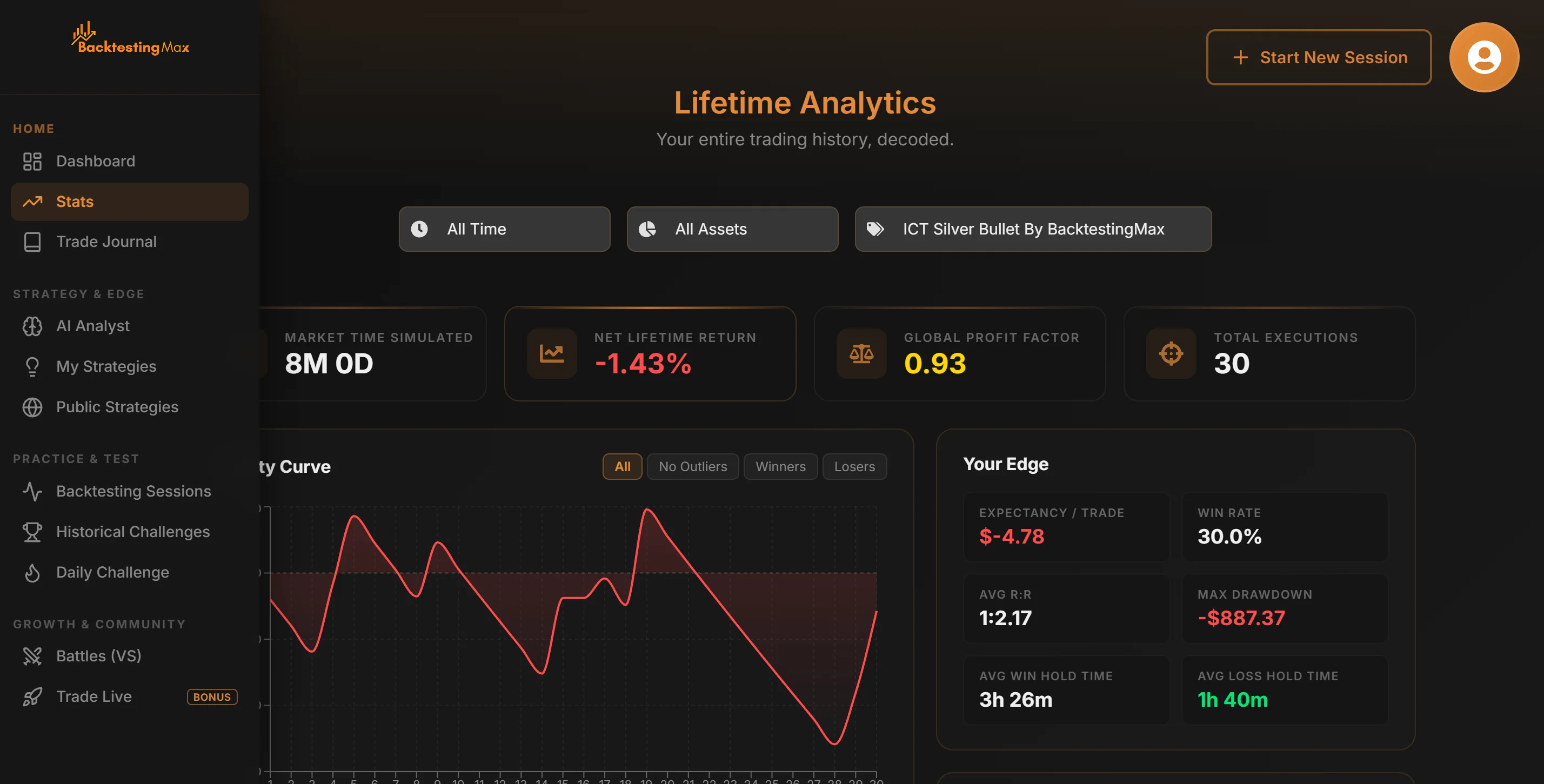
The home page with the Stats tab open: sidebar groups on the left, Start New Session and your account top-right
The chart at a glance
- Top bar: symbol, timeframe, timezone, Indicators, Calendar, your equity and the Take Trade button on the left; playback controls, settings, account and help on the right.
- Left toolbar: drawing tools and the chart layout picker.
- Right sidebar: Trades, Stats, Notes, Strategy, Calendar, Market and AI tabs. Open it from the rail on the right edge.
- Trade markers: entries, stops and targets are drawn on the chart and can be dragged.
Starting a Session
Where to start from
- Start New Session button in the top-right corner of the home page.
- Backtesting Sessions tab → Create New Session.
- Dashboard → the Start New Session card under Your Next Steps.
- From a strategy page (Start Live Test) so the session is linked to that strategy from the first bar.
Choosing what to test
The session wizard walks you through five steps:
- Backtesting type: A standard session, or a Prop Firm Challenge if you want to practise under a prop firm's rules. In a challenge you pick a firm and an account size (or type your own rules), the profit target, daily loss and max loss are tracked as you trade, and the session ends with a pass or fail. See the prop firm simulator for the firms that are built in.
- Trading pair: Forex and metals are available on every plan. Premium adds crypto, commodities, indices, ETFs, bonds, futures and stocks.
- Date range: Pick the period you want to trade through. The free plan has a limited history window; Premium is unlimited.
- Initial balance: Your simulated account size. Risk-based position sizing works from this number.
- Review & start: Give the session a title, check the summary and click Start Backtesting.
- What you see first: The chart loads a stretch of history before your start date so you have context. Nothing after the start date is visible until you press Play.
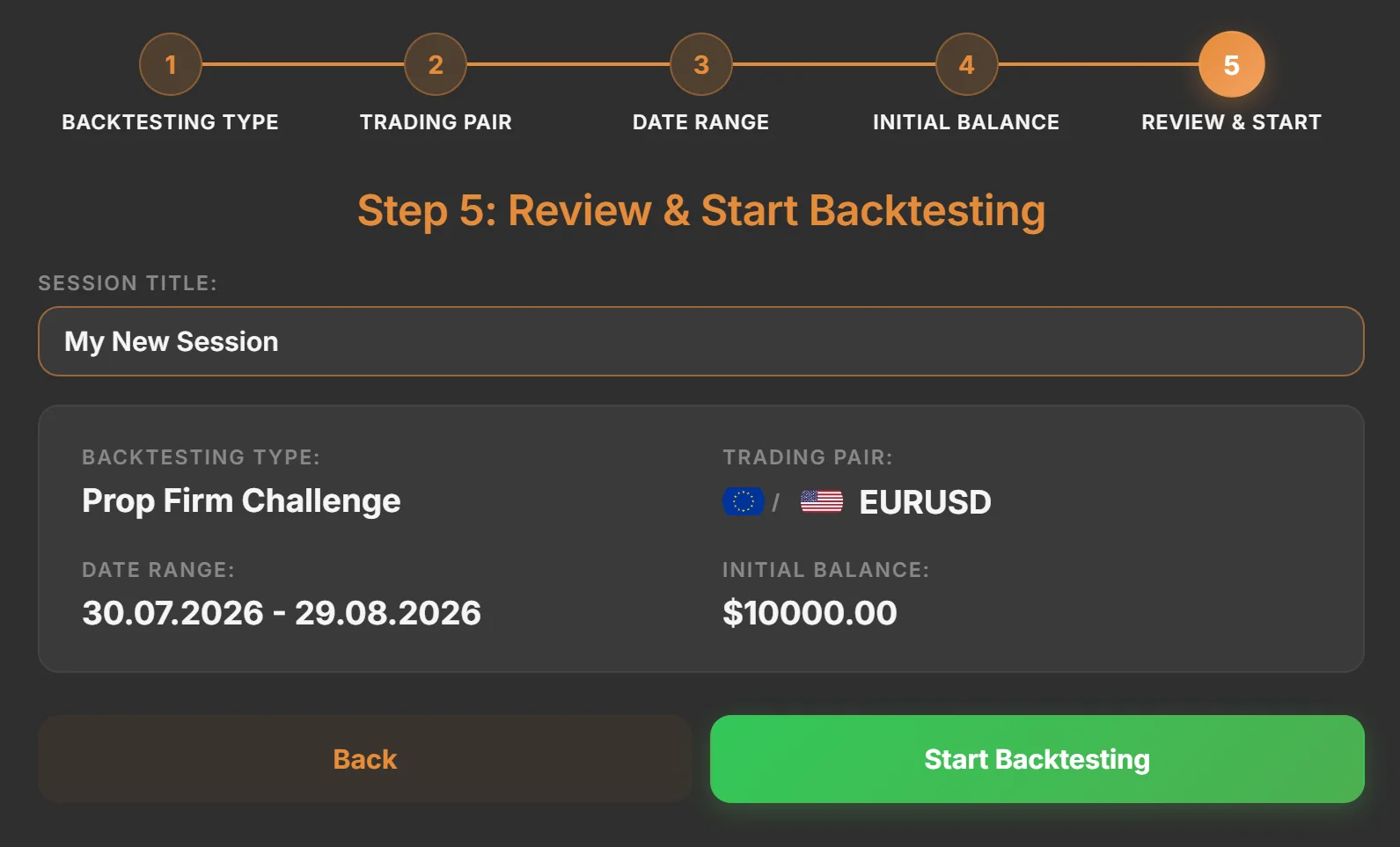
The session wizard: type, pair, date range and balance, then review and Start Backtesting
The Chart
Timeframes, timezone and scaling
- Timeframe: Use the selector in the top bar (1m, 5m, 15m, 30m, 1h, 4h, 1d…). Choose + Custom Timeframe to type your own, such as
3m,10mor2h. Your recent custom timeframes are remembered. Weekly and monthly are Premium. - Timeframe hotkeys: Keys 1–9 switch timeframes; assign them in Settings → Hotkeys.
- Timezone: Detected automatically. Change it with the selector right next to the timeframe.
- Zoom: Mouse wheel zooms time. Drag the price scale on the right to stretch or squash prices.
- Auto scale: The A button in the bottom-right corner (or A) fits prices to the visible bars. F fits the whole chart. The gear next to A switches the price scale between linear, logarithmic, percentage and inverted.
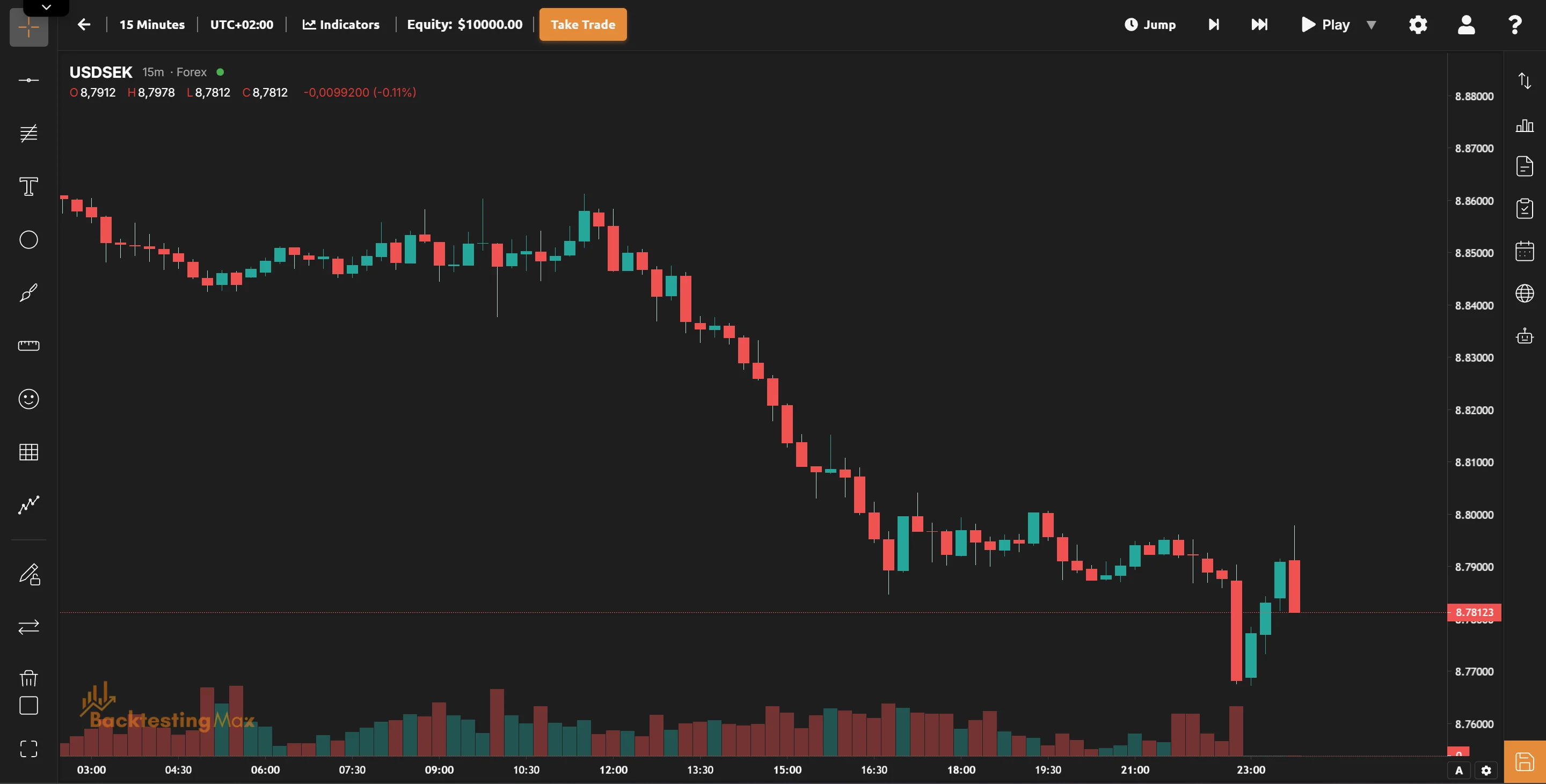
The chart: top bar, drawing toolbar on the left, sidebar rail on the right, auto-scale bottom-right
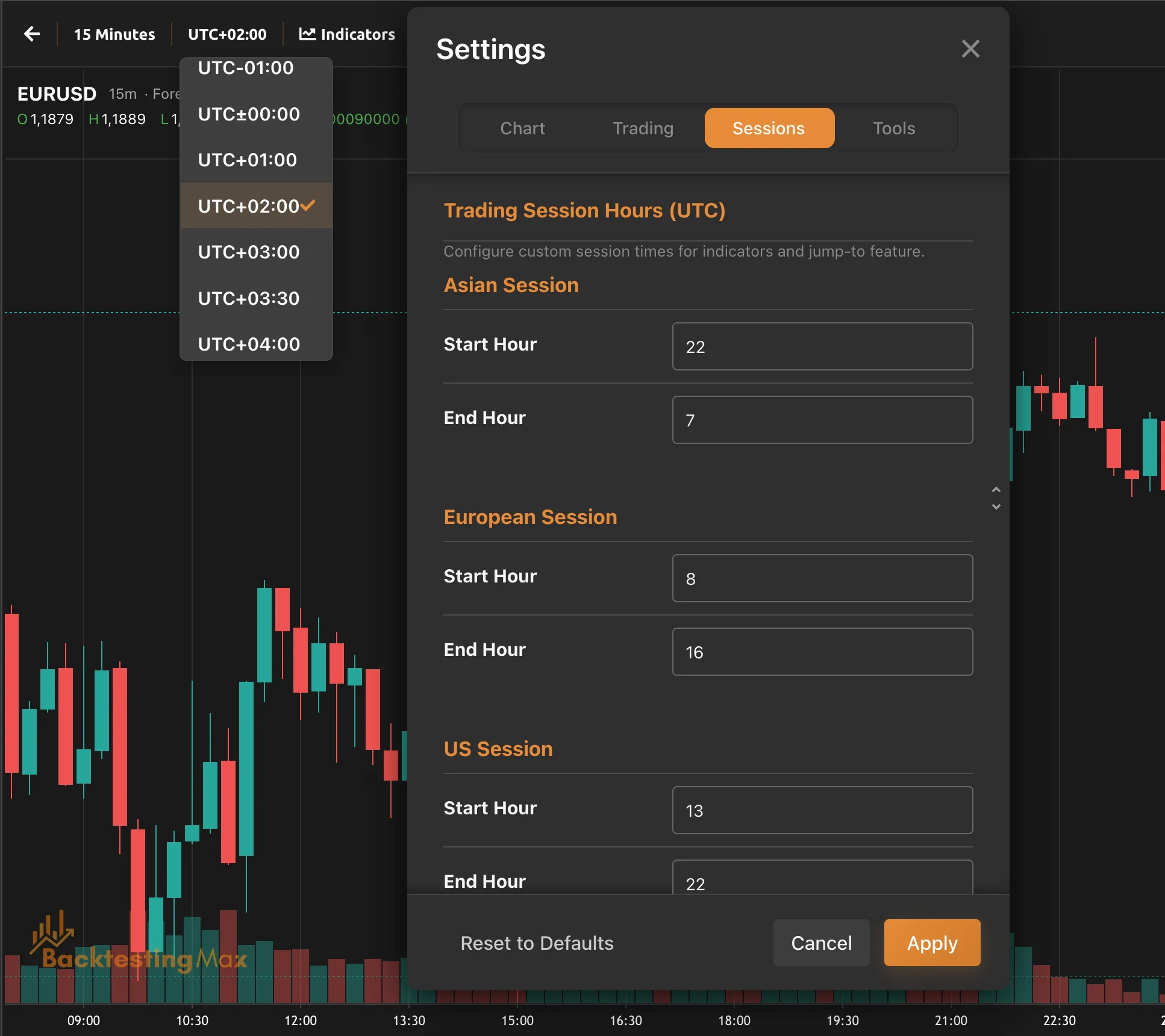
The timezone selector sits next to the timeframe. Settings → Sessions holds the session hours used by Jump
Saving your session
- Click Save Session in the bottom-right corner, or press Ctrl+S, at any point. You can keep trading afterwards.
- Give the session a title and a description of the idea you were testing. The description is what you will thank yourself for later.
- Choose Save and Finish when you are done. Saved sessions can be continued later from the Backtesting Sessions tab.
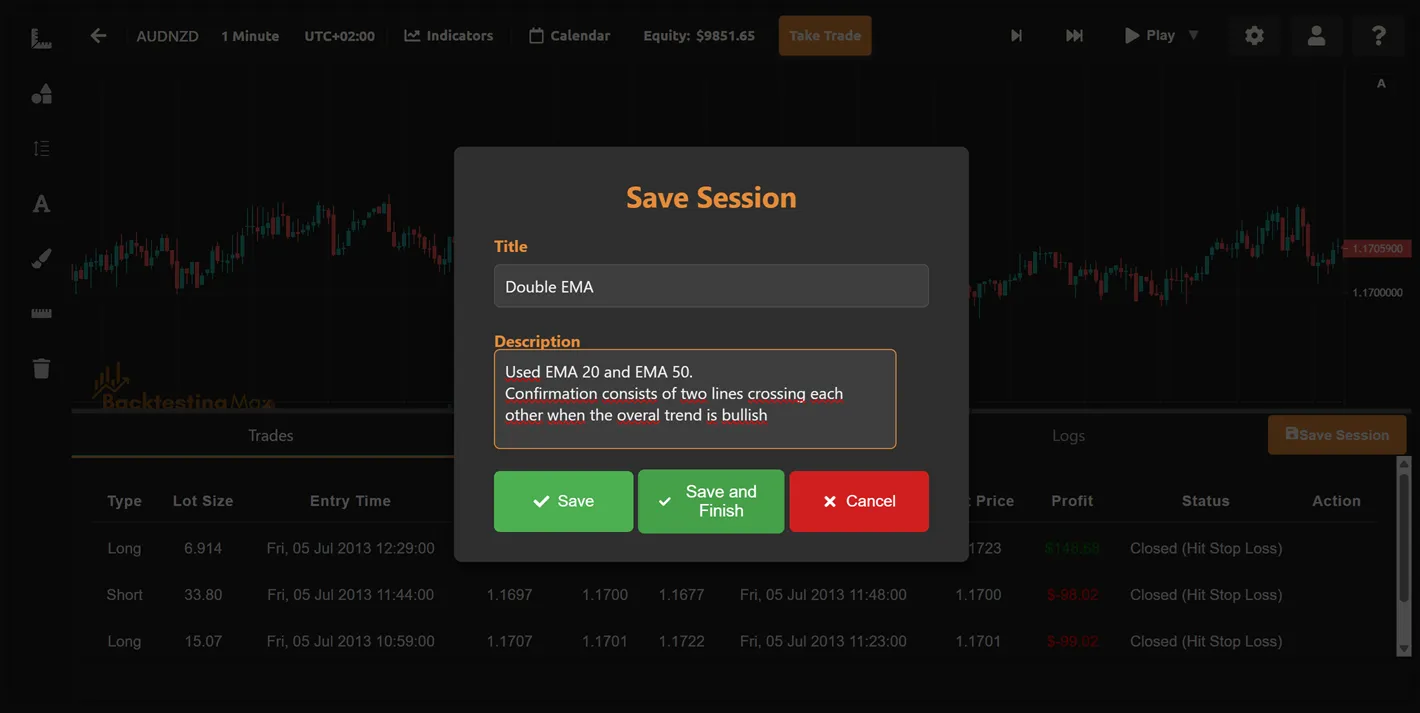
Save Session: title, description, Save or Save and Finish
Playback & Replay
Controls
The playback controls sit in the top-right corner of the chart.
- Play / Stop: Starts and stops the replay. Space toggles it, ← stops.
- Speed: Open the small dropdown on the Play button and drag the speed slider (milliseconds per bar). ↑ and ↓ adjust it while you play.
- Skip 1 bar: The single-step button or → advances exactly one candle, perfect for reading price action slowly.
- Skip 5 bars: The double-step button or Shift+→ moves ahead five candles at once.
- Forward only: The replay never rewinds, exactly like a live market. Use a slower speed or single steps when you want to study a move, and re-watch any saved session later from its Review page.
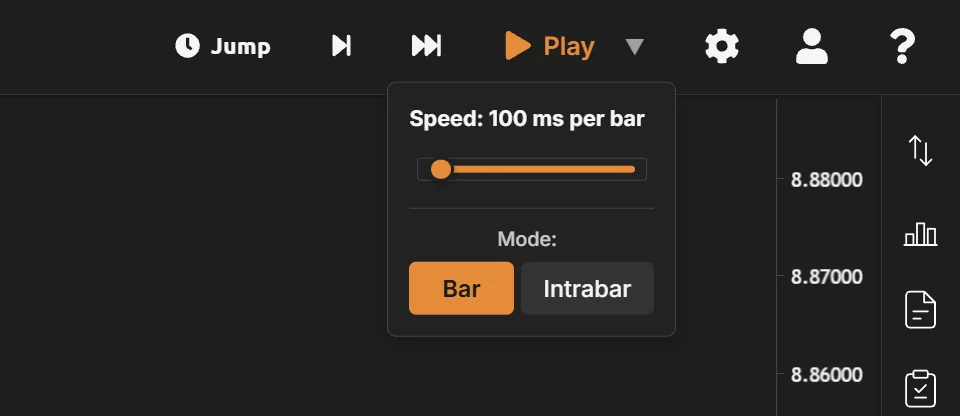
The Play dropdown: speed slider and Bar / Intrabar mode
Intrabar mode (Premium)
By default each candle appears fully formed. Switch the mode in the Play dropdown to Intrabar and the platform replays the real 1-minute bars inside every candle instead.
- Watch candles form: Wicks extend, retrace and fight for a close the way they did live. No more hindsight from seeing a finished pin bar.
- Skip interval: Choose how many intrabar steps a single skip covers.
- Not on 1m: Intrabar mode needs a timeframe above one minute.
Jump to Session (Premium)
Skip the dead hours. The Jump button next to the playback controls takes you straight to the next session open.
- Next Asian / European / US session: One click lands on the opening bar. Ideal for London breakouts and New York opens.
- Choose a specific date & time: Type a UTC date and time to jump anywhere inside your range.
- Your own session hours: Set each session's hours in Settings → Sessions: Asian in UTC, European in London time and US in New York time, both following daylight saving. The defaults are Asian 00:00–08:00 UTC (the Tokyo session) and European and US 08:00–17:00 local time. On your chart under each session shows those hours in your chart's timezone. The session indicators have their own hours in their settings.
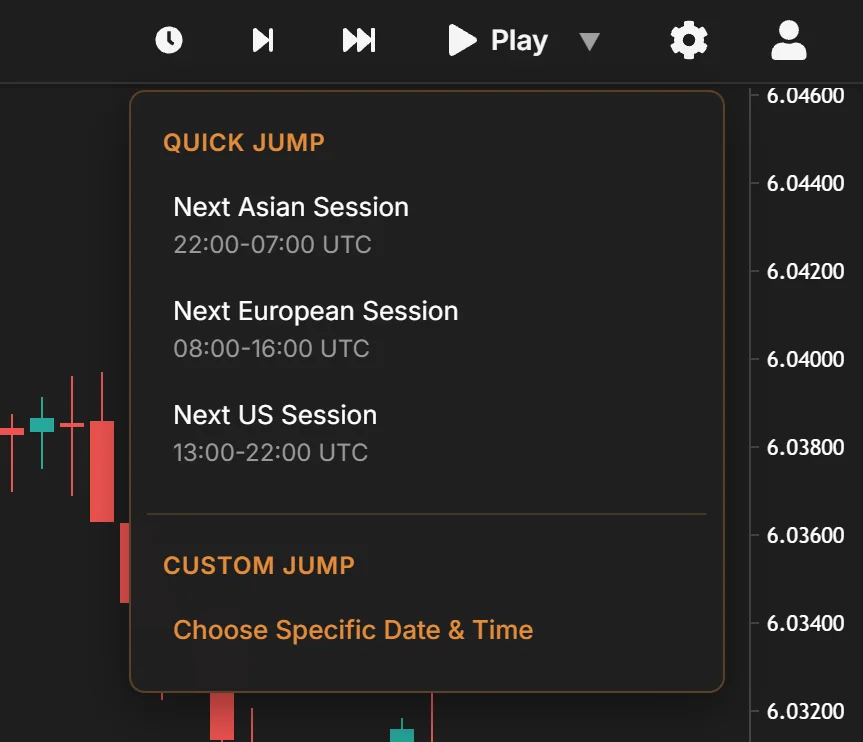
Jump: next session open, or a specific date and time
Taking & Managing Trades
Placing a trade
- Open the dialog: Click the orange Take Trade button or press T. The New Trade dialog opens with the entry, stop and target lines drawn on the chart.
- Direction: Long or Short.
- Order type: Market fills at the current price. Limit waits for your price: drag the entry line on the chart or type the level.
- Stop loss and take profit: Type the prices or drag the red (stop) and green (target) lines. The risk-to-reward badge updates as you move them.
- Position size: Enter the lot size directly, or turn on Risk % and the lot size is calculated from the percentage of your balance you want to risk between entry and stop. Risking 0.5–2% per trade is a sensible default.
- Several targets: Add up to four take-profit levels and set what share of the position closes at each one. The shares must add up to 100%.
- Confirm: Press Enter or click Place Trade. L and K open a quick long or short.
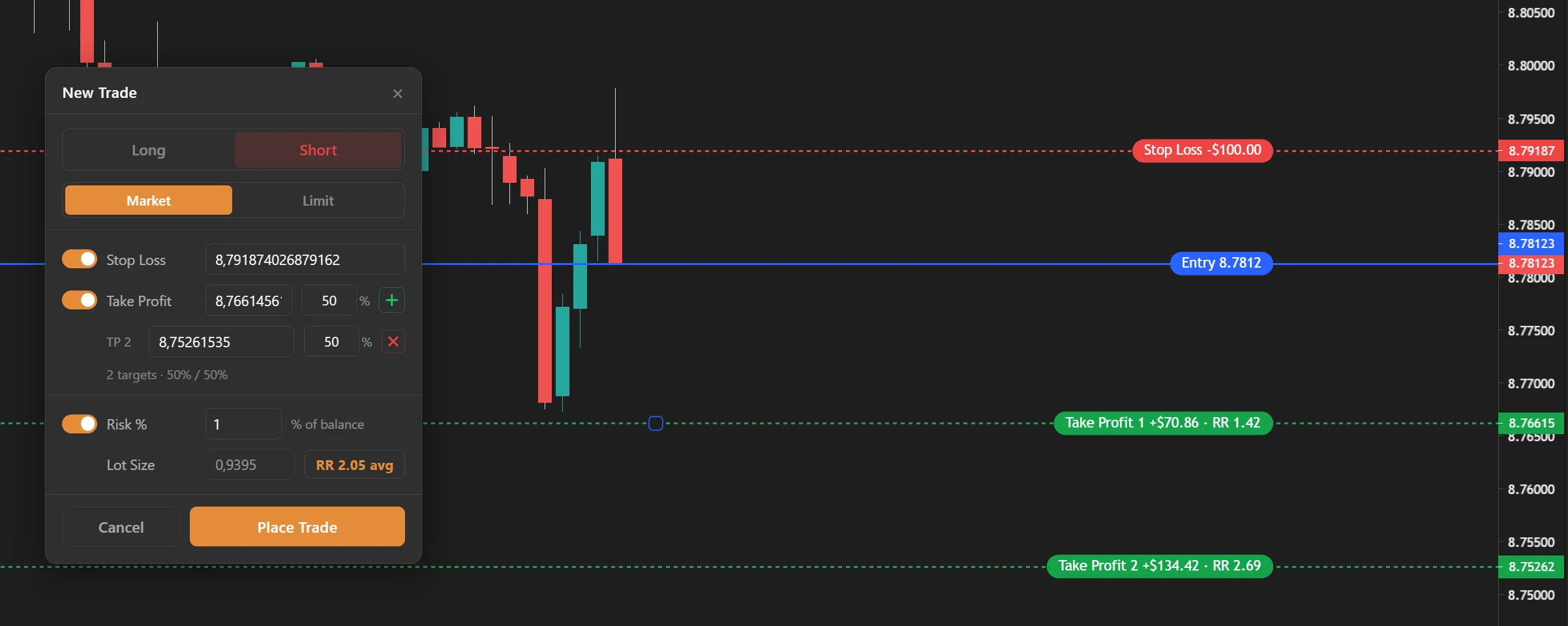
New Trade: a short with a stop, two take-profit targets split 50 / 50, lot size from 1% risk, and the average risk-to-reward badge
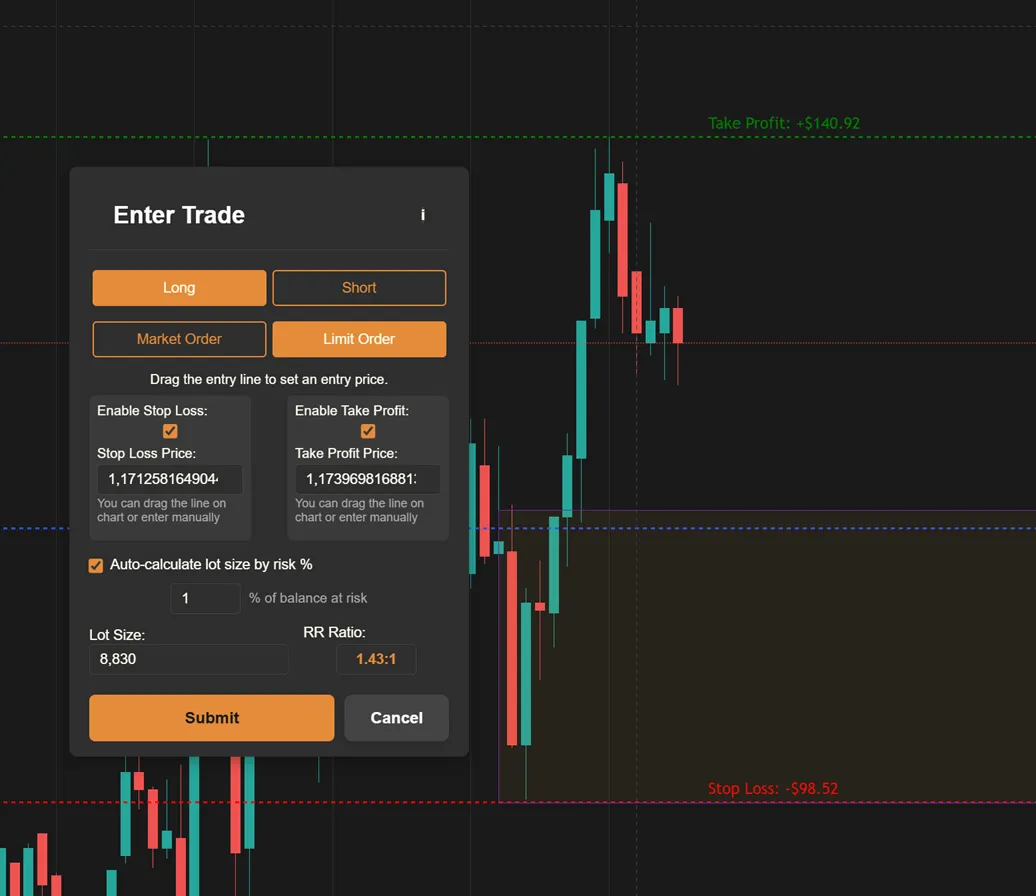
Limit order: drag the entry line to your price; the stop and target lines show the risk and reward in money
Managing open trades
- Trades tab: Open the right sidebar and pick Trades. Filter by All, Open or Closed. Click a trade to highlight it on the chart.
- Move your levels: Drag the stop or target line on the chart at any time while the trade is open.
- Close: The red Close button on an open trade opens the Close Position dialog. Close everything, or close part of it by lot size or by percentage (25 / 50 / 75% shortcuts) and keep the rest running.
- Cancel: Pending limit orders show a Cancel button instead.
- Automatic exits: Trades close on their own when price reaches the stop or a target.
- Notes on a trade: Every trade can carry its own note and screenshots, which show up again on the session review.
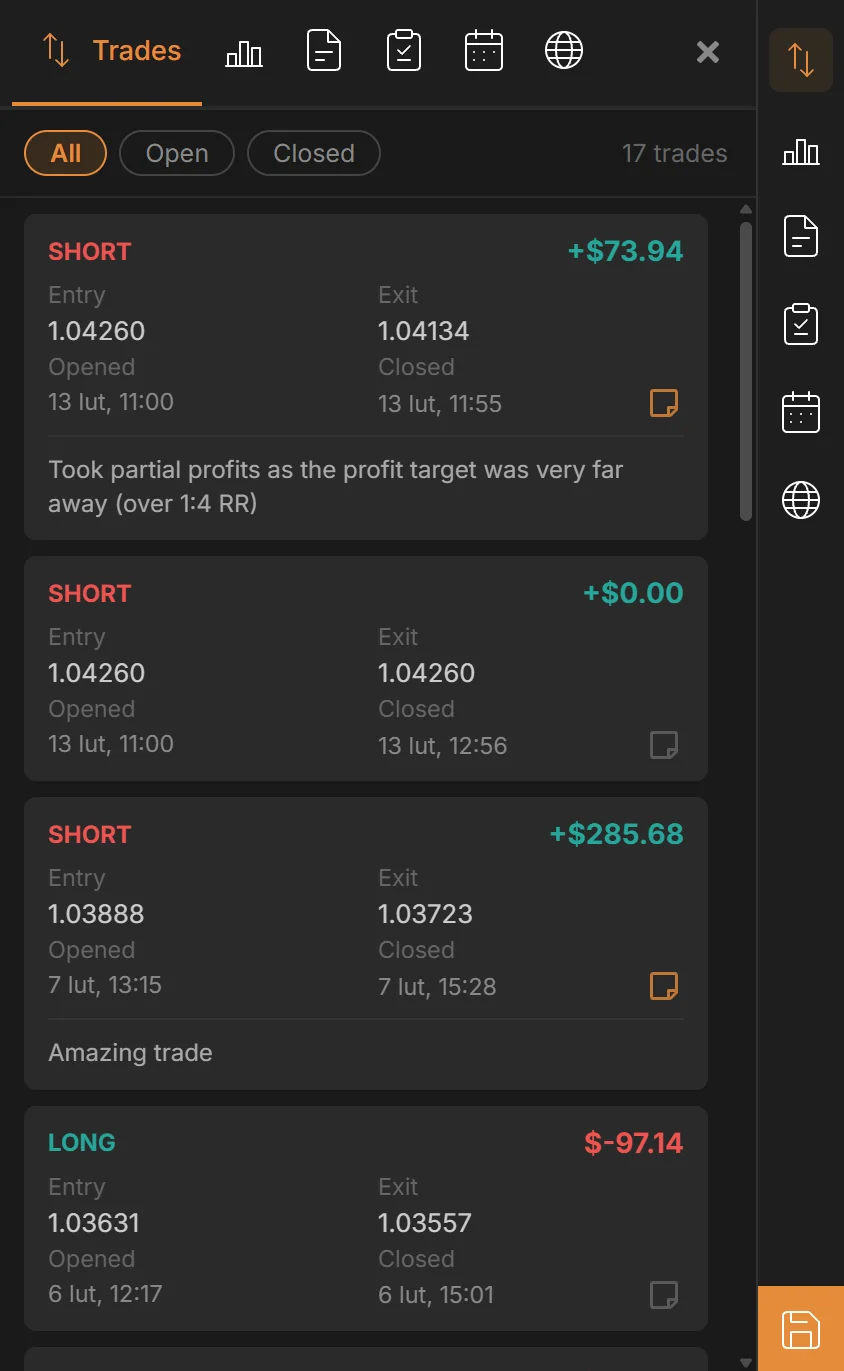
The Trades tab: filter All, Open or Closed; every trade shows entry, exit, result and your note
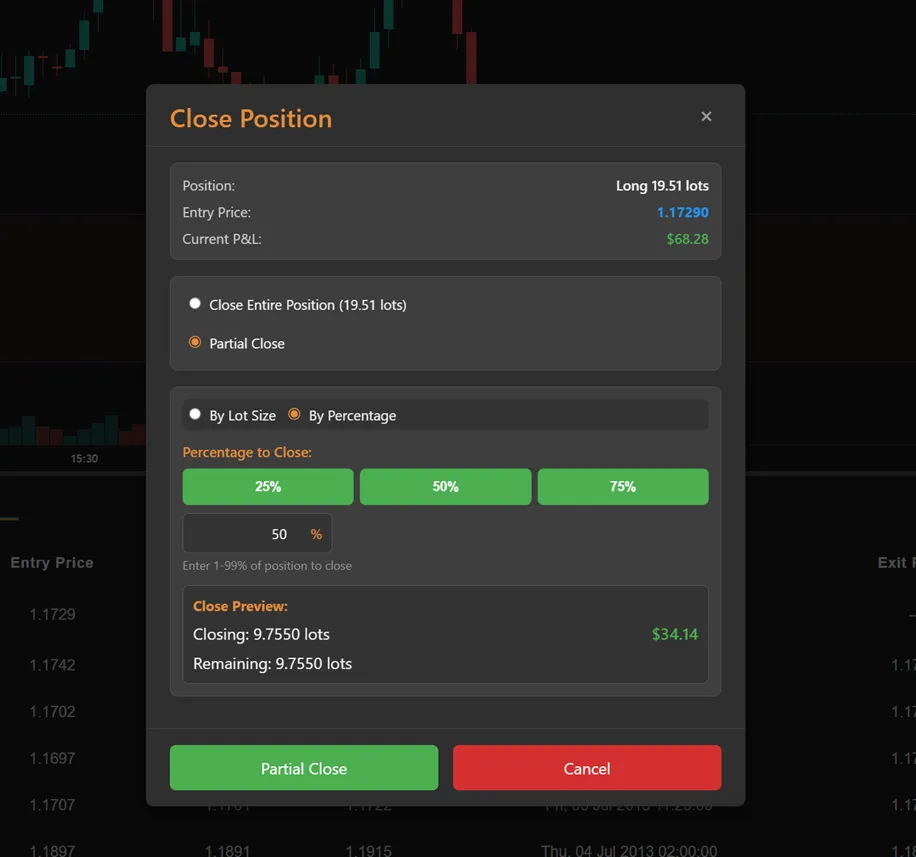
Close Position: full or partial, by lot size or by percentage
Notes & Trade Journal
Notes during a session
The Notes tab in the right sidebar is a journal that lives on the chart.
- Add Note (or N) creates a note stamped with the chart time you are looking at, not the wall clock.
- Attach screenshots: Drop images into a note to keep the setup next to your reasoning. Click to enlarge.
- Edit and delete any note during or after the session. Notes are saved with the session and shown on its review page.
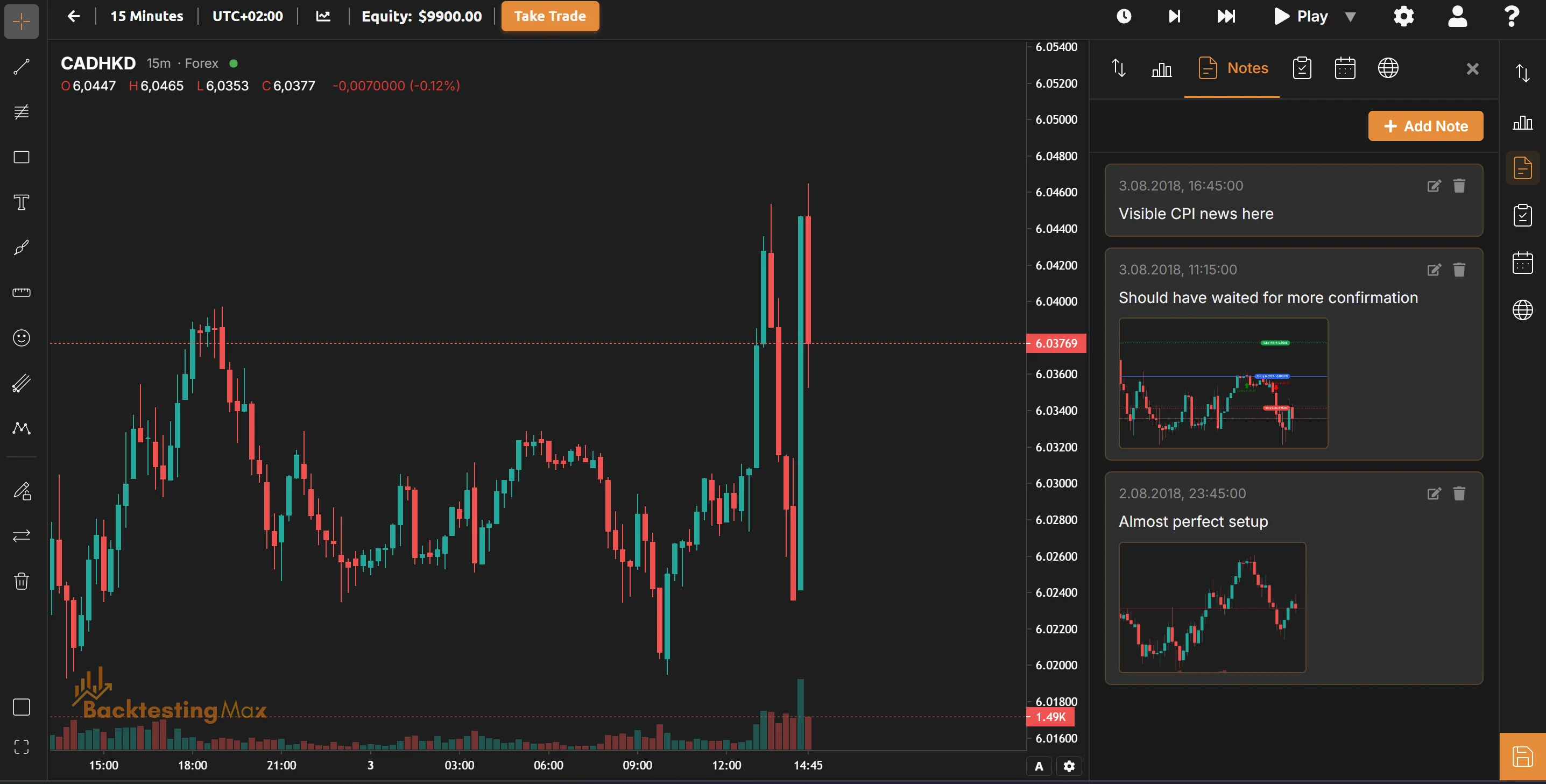
Time-synced notes with image attachments
Trade Journal for your real trades
The Trade Journal tab on the home page is for trades you take outside the simulator.
- Log a trade with entry, exit, size, tags and screenshots, and record how you felt before and after.
- Calendar heatmap shows profitable and losing days at a glance.
- Reviews and time analysis break your results down by session, day and hour, the same way backtests are analyzed.
- Import and export your journal whenever you need it elsewhere.
Strategies & Checklists
Build a strategy blueprint
Open My Strategies and click Forge New Strategy. A blueprint is your written edge, structured so the platform can hold you to it.
- Checklists: Entry Conditions, SL/TP Placement and Invalidation Logic out of the box, plus any custom sections you want.
- Setup examples: Attach screenshots with descriptions so a textbook trade is always one click away.
- Narrative: Write down why the setup works. Future you will need it.
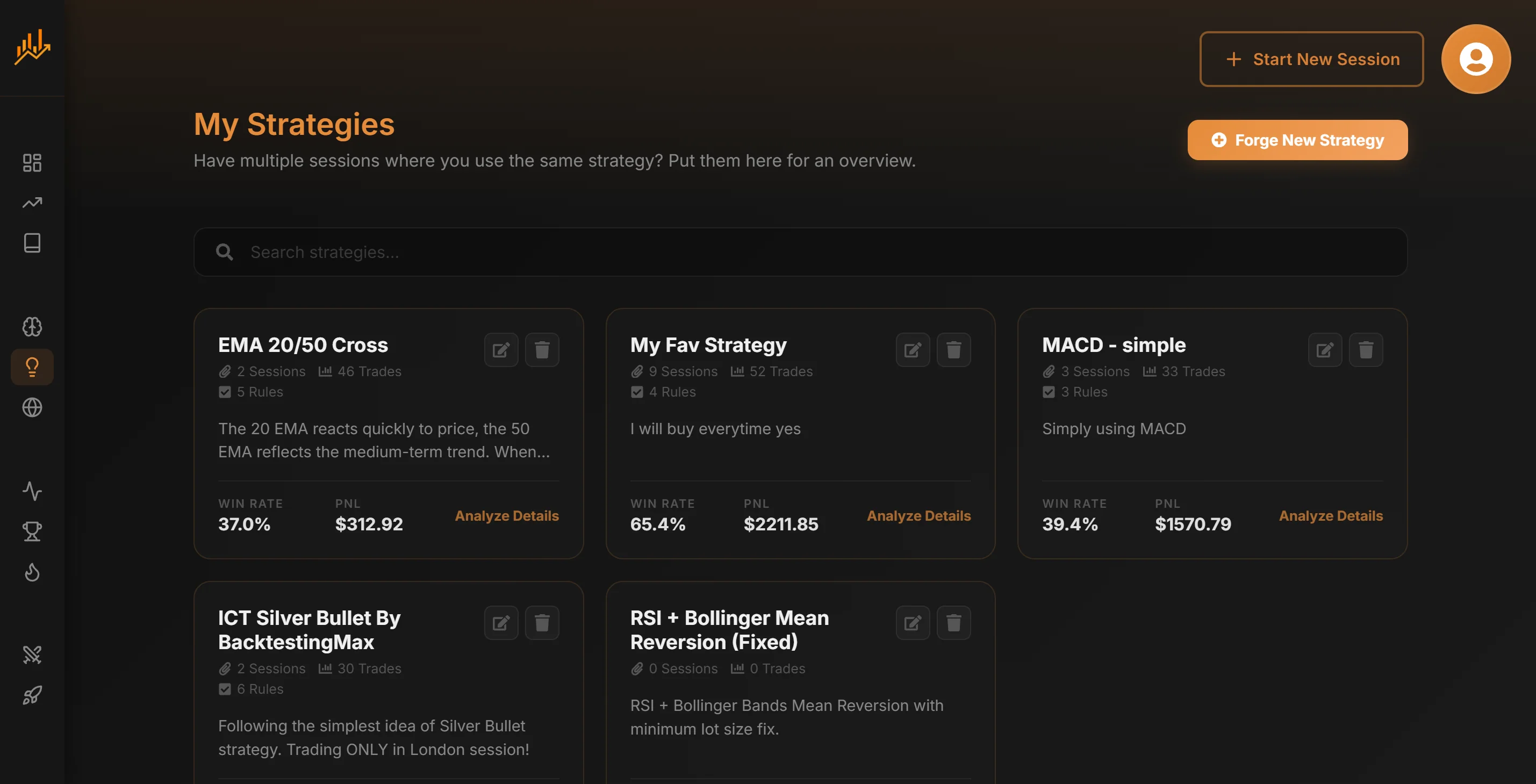
My Strategies: each blueprint shows its rules, attached sessions, trades, win rate and P&L
Trade with the checklist open
- Strategy tab: Link a strategy to your session and its checklist appears in the right sidebar, grouped by section. Tick rules as the market meets them.
- Enforce entry conditions: Turn it on and the platform refuses to open a trade until every entry condition is checked. Reset after trade close clears the ticks for the next setup.
- Adherence: Every trade records how much of the checklist you followed (0–100%). The Stats tab shows your win rate at full, partial and no adherence, and which rules you skip most.
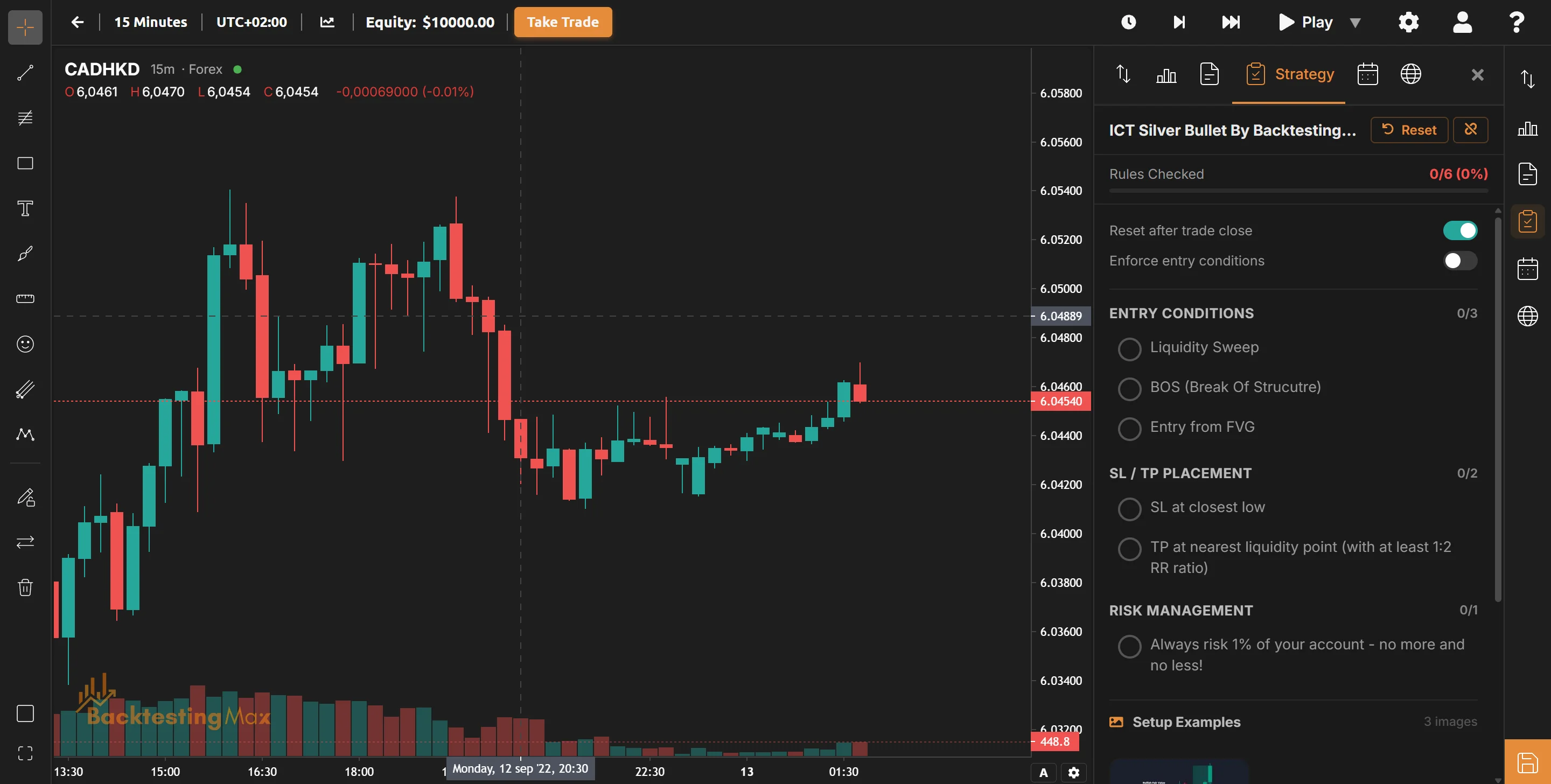
The Strategy tab: rules grouped by section, the enforce and reset toggles, and setup examples below
Prove it and share it
- Attach sessions: Link any backtest to the strategy. Win rate, expectancy, profit factor and trade count aggregate across all of them, with a confidence level that tells you when the sample is big enough to mean something.
- Projections: The performance tab runs a Monte Carlo simulation on your attached trades to show the range of outcomes the edge could produce.
- Optimization: Day-of-week and hour-of-day heatmaps, long versus short bias, streaks and tilt detection show when and where the strategy actually works.
- Publish: One click shares the blueprint, checklists, setup images and verified metrics to Public Strategies, where other traders can view and heart it. Sync it again whenever you add sessions.
AI Chat
Describe it, the AI builds and tests it
AI Chat is where an idea becomes a tested strategy without writing code. Tell it what you want to trade in plain English and it does the rest.
- Write a strategy: "Buy when the 20 EMA crosses above the 50 EMA on EURUSD 1h, stop under the last swing low, 2R target." The AI writes the strategy for you.
- Backtest it: It runs the strategy on real historical data and replies with the headline numbers plus a card with Score, Equity and Trades tabs. Save as session turns the result into a normal session you can review like any other.
- Improve it: Ask it to change a rule, test a different pair, run an optimization over the parameters, or run a Monte Carlo simulation on the results. Each answer builds on the last.
- Build an indicator (Premium): Describe something you want to see on the chart and the AI writes the indicator and adds it to your library.
- Ask questions: Trading concepts, what a metric means, research with charts. It also knows your own library of strategies and indicators.
- See the code if you want: Every generated strategy can be inspected and edited in place, but you never have to.
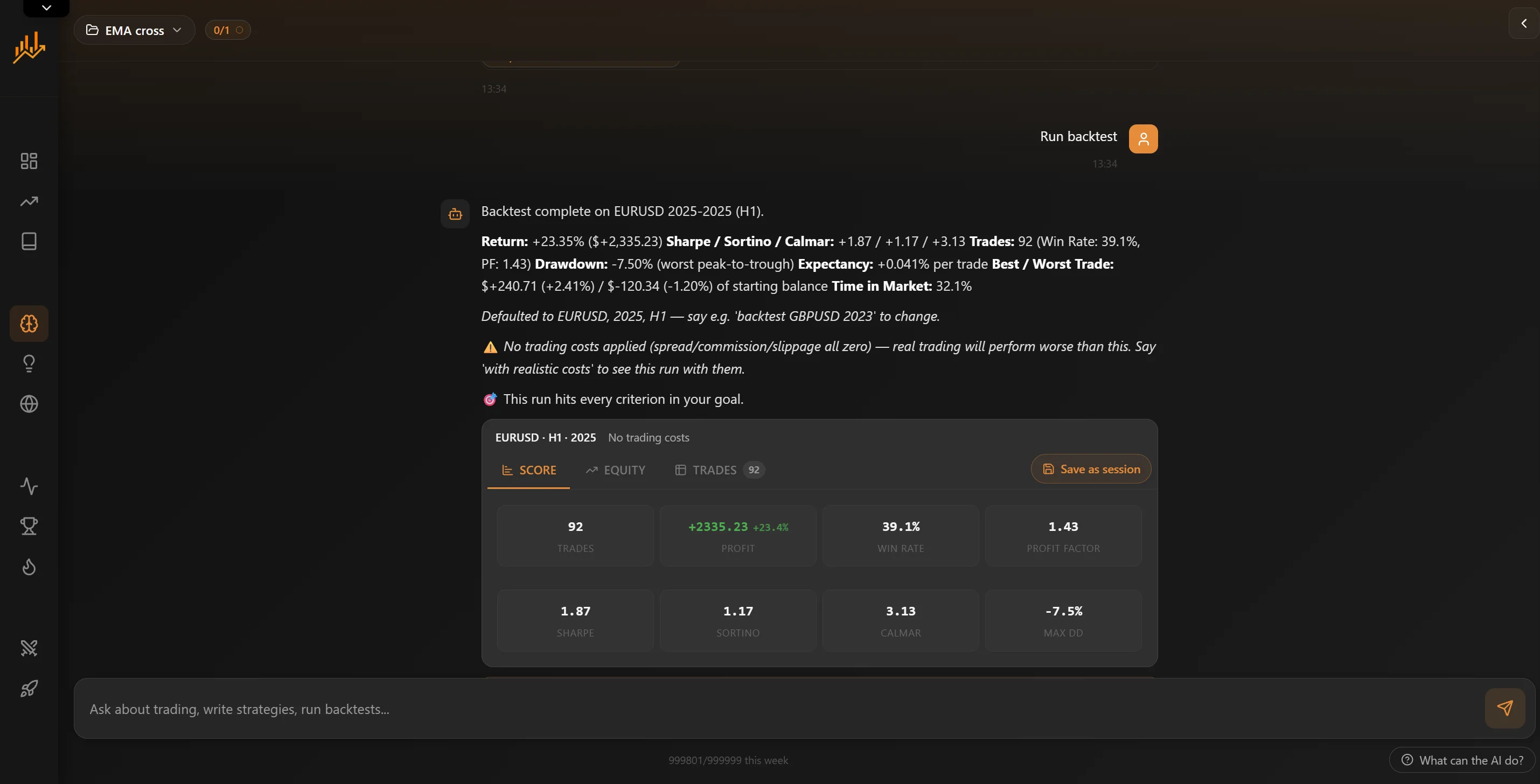
A backtest reply: headline stats, then Score, Equity and Trades tabs and Save as session; the project and its goal sit top-left
Projects and credits
- Projects: Keep each research thread in its own project with a name and a goal. Set measurable targets after the first backtest and the AI tells you when a version reaches them. The free plan includes one project; Premium removes the limit.
- Credits: Each message uses a credit. Your remaining daily and weekly credits are shown next to the message box.
AI on the chart
You do not have to leave a session to use the AI. The AI tab is the last icon on the right sidebar, and it knows which pair you have open.
- Ask about what you see: "What does RSI divergence mean?", "Show me a fair value gap on this pair". Quick answers while the replay is paused, without switching pages.
- Get an indicator without the editor (Premium): Ask for one, for example "Find an indicator for trend strength". When the reply comes back with an indicator, click Apply to chart and it is saved to your library and drawn on the chart in one step.
- Suggested prompts: The tab opens with a few ready-made questions so you can see what it is good at.
- In the indicator editor: Writing or fixing a custom indicator? The AI button inside the editor reads your code and the error and proposes the fix.
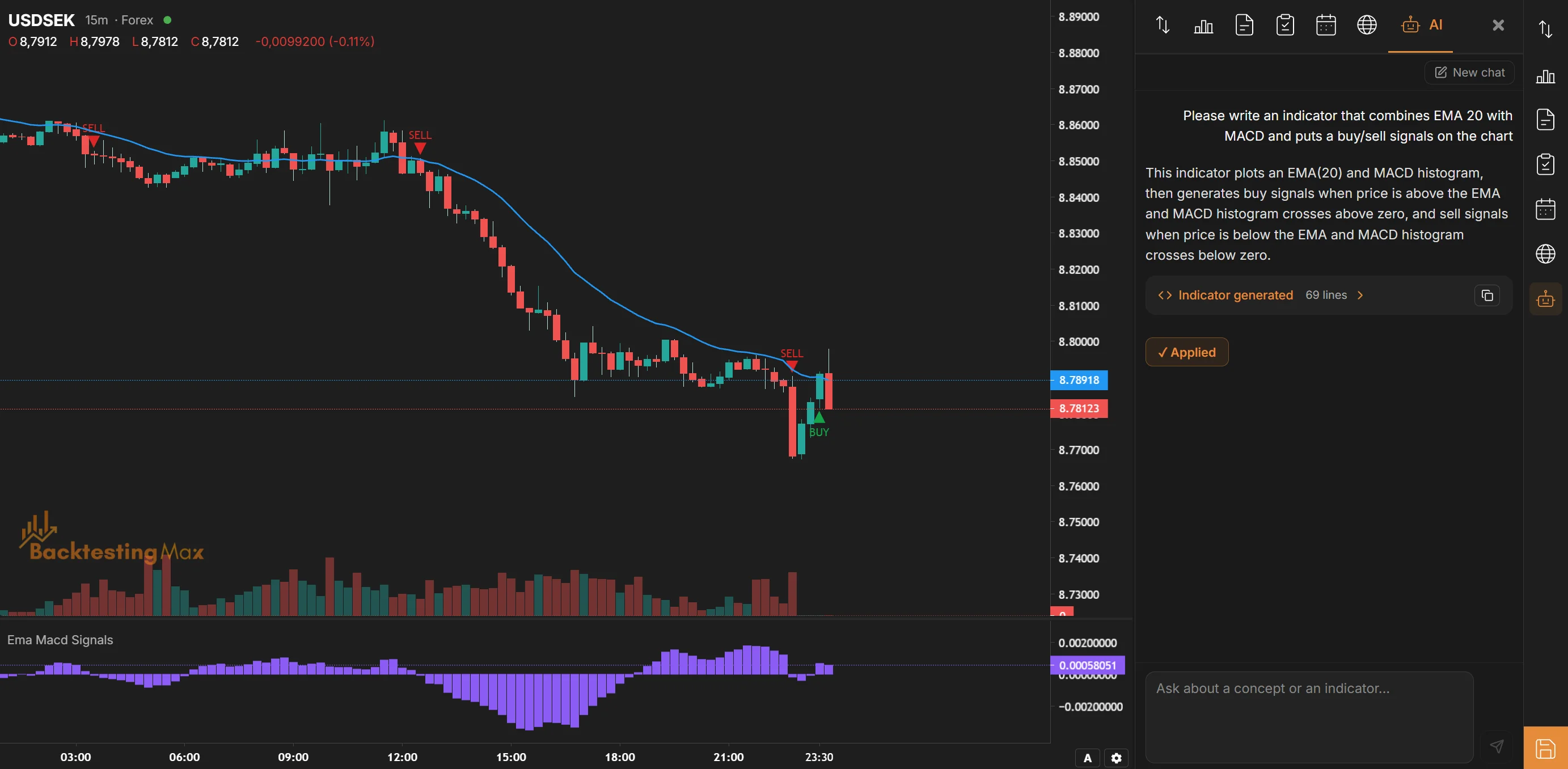
The AI tab on the chart: one plain-English request produced an EMA 20 + MACD signal indicator, applied with a click, with buy and sell markers on the candles and the MACD in its own pane
Analytics & Scores
Live stats while you trade
The Stats tab in the right sidebar updates after every trade:
- Overview: total and closed trades, wins and losses, win rate, consecutive wins and losses, days traded, average hold time.
- Profit: net profit, profit factor, expectancy, average profit per trade, average and largest win and loss, average risk-to-reward.
- Risk: maximum drawdown, maximum daily drawdown, Sharpe ratio.
- Long vs Short and Account (initial balance, balance, equity).
- Strategy Discipline: average adherence and your win rate with full, partial or no checklist, when a strategy is linked.
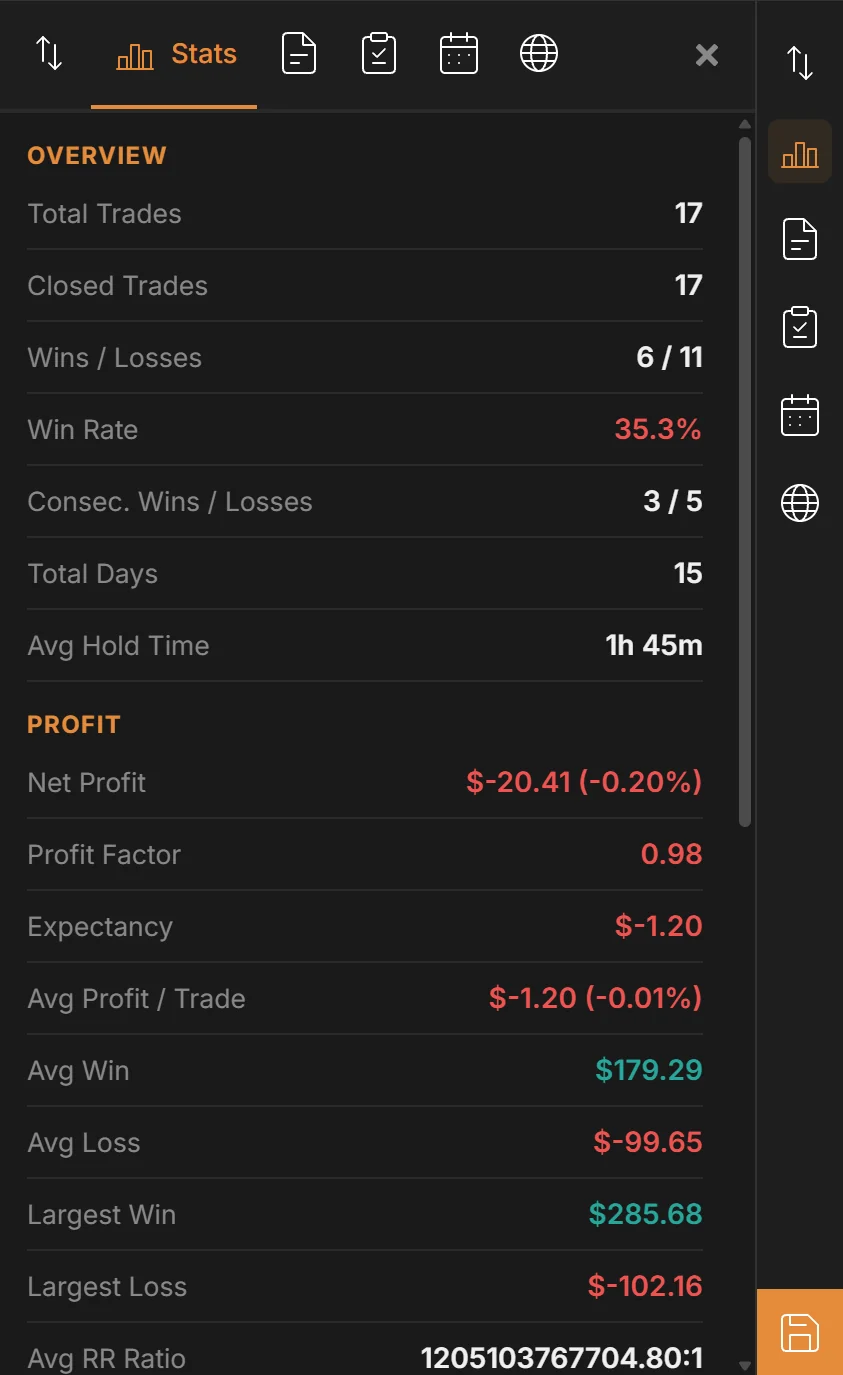
The Stats tab, grouped by Overview, Profit, Risk and more
The session page
- BacktestingMax Score: Every saved session is scored across five pillars: Safety, Reliability, Discipline, Profitability and Consistency. The tier runs from Developing through Intermediate and Professional to Legendary, with a critique that targets your weakest pillar.
- Balance and equity over time: Balance is what you have banked; equity includes open trades. The gap between them is your open risk.
- When you trade best: Profit by day of the week and by hour of the day.
- Monte Carlo: Reshuffles your trades thousands of times to show how lucky or unlucky the actual sequence was.
- Trades table: Every trade with entry, exit, result and what closed it. Export to CSV or Export to Excel for your own analysis.
- Review Session: Replays each trade with a 1–10 trade score based on risk-to-reward, volatility, entry timing, risk management and stop and target distance, plus suggestions.
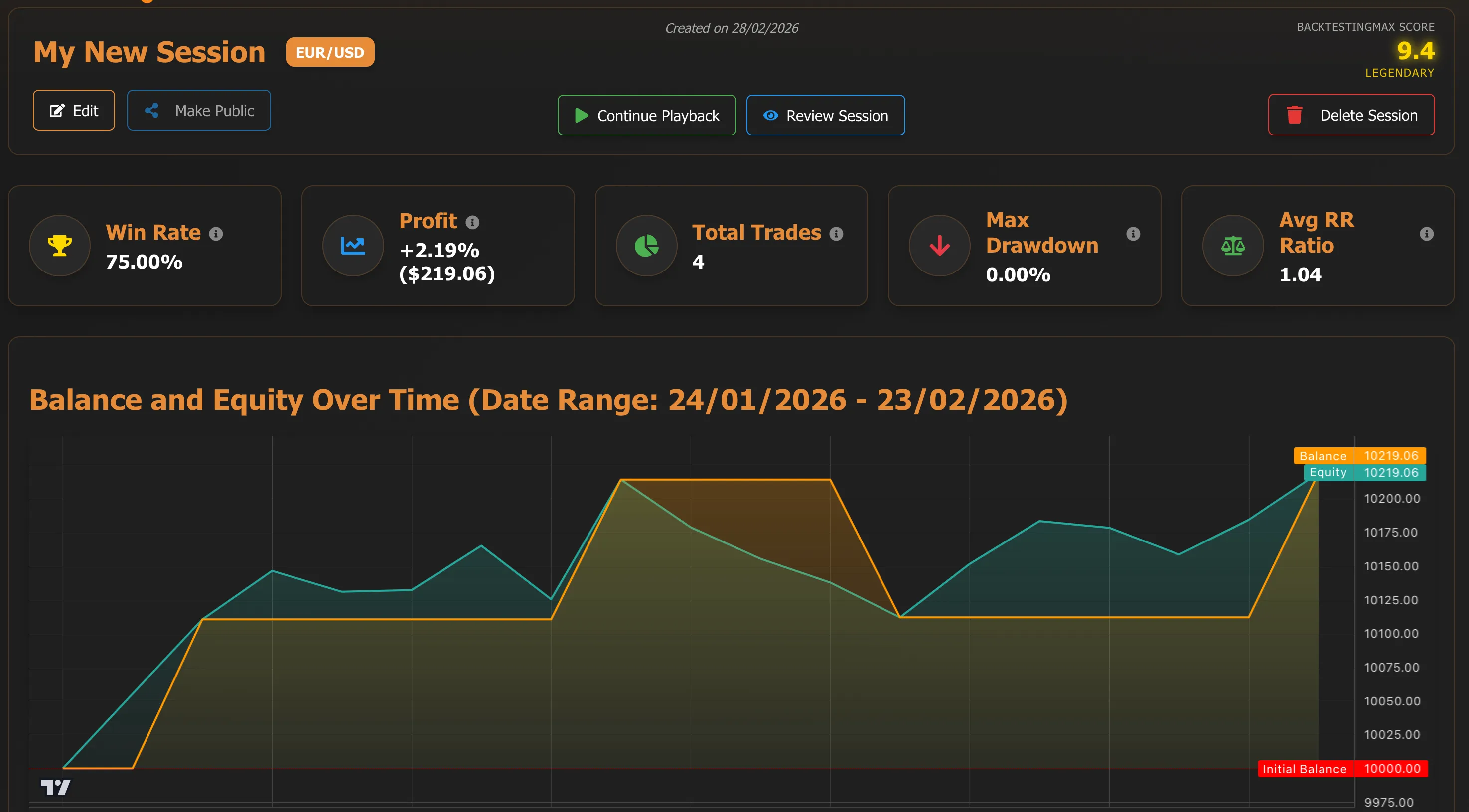
A saved session: score, headline metrics and the balance / equity curve
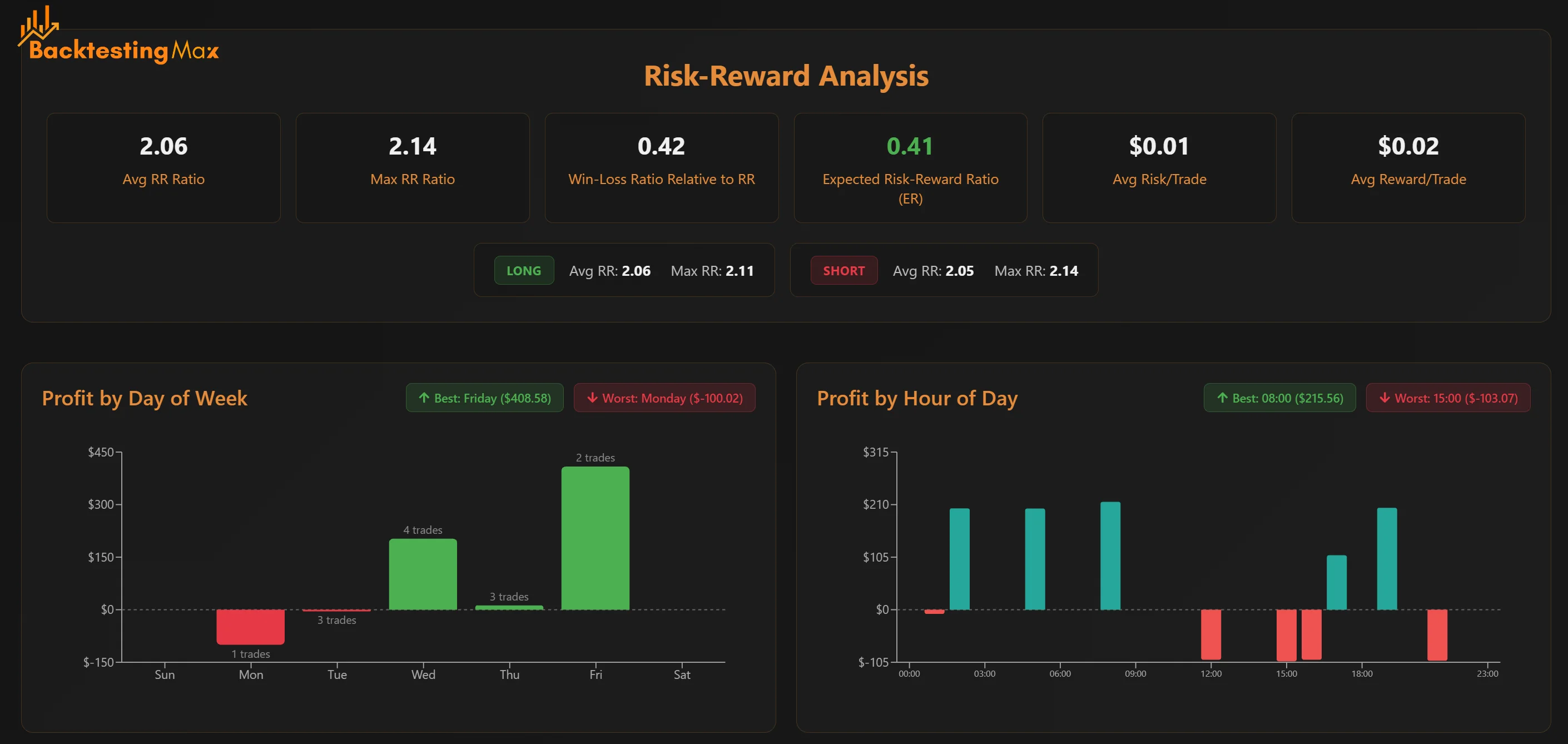
Risk-reward analysis, then profit by day of the week and by hour of the day with your best and worst highlighted
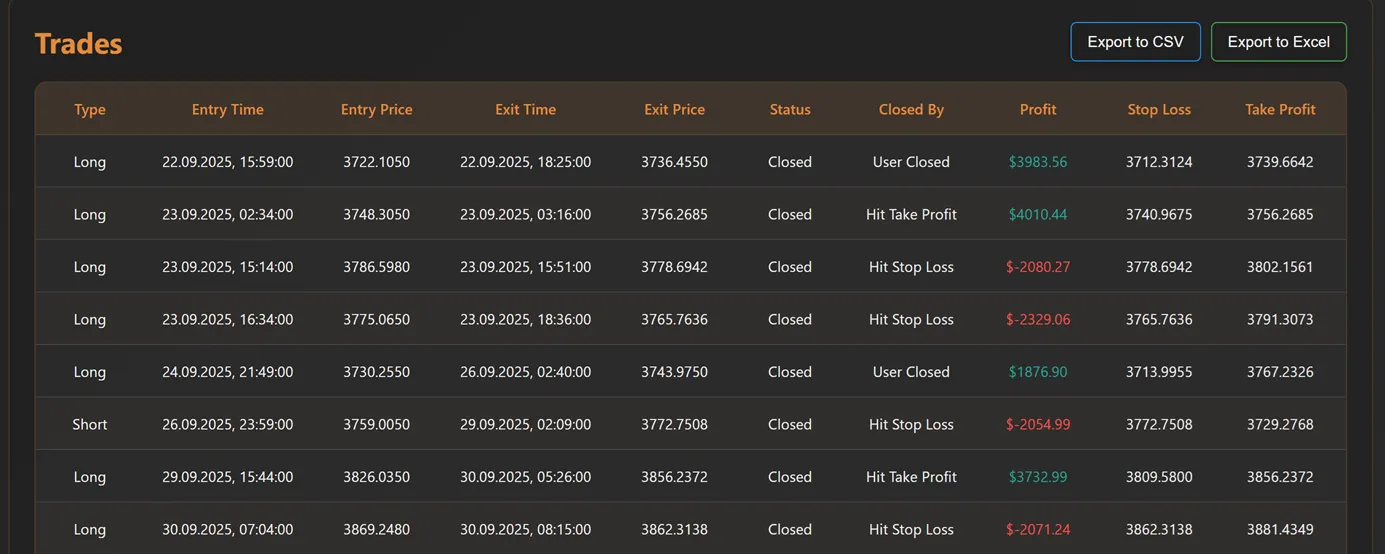
The trades table with Export to CSV and Export to Excel
Across all your sessions
The Stats tab on the home page is your lifetime view: the same metrics rolled up across every session, per-asset grades, and how your discipline trends over time.
Drawing Tools
Using the tools
- Pick and place: Choose a tool from the left toolbar, then click on the chart to place it.
- Edit: Click any drawing to select it and open its settings: colours, line styles, labels.
- Magnet: Hold Shift while drawing to snap to candle highs, lows, opens and closes.
- Undo and redo: Ctrl+Z and Ctrl+Y. Copy and paste drawings with Ctrl+C / Ctrl+V.
- Delete: Select a drawing and press Delete. The trash icon clears every drawing on the chart.
- Templates: Save a tool's style as a template and reuse it, and pin your favourite tools for quick access.
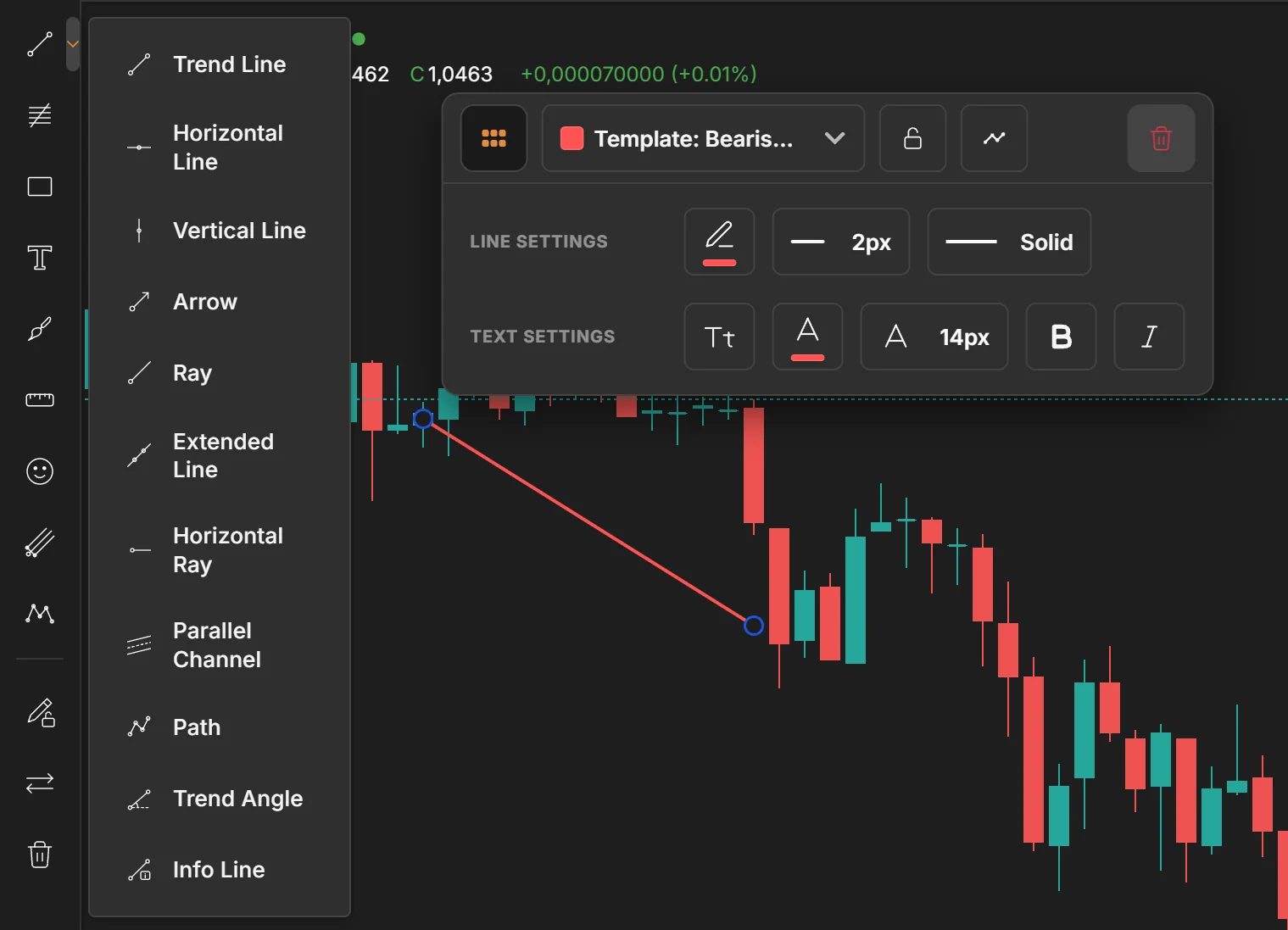
The line-tools menu, and the settings panel of a selected trend line with a saved template applied
Free and Premium tools
- Free: Trend Line, Horizontal Line, Vertical Line, Fibonacci Retracement, Rectangle, Brush, Price Range, Long / Short Position and Emoji.
- Premium: Everything else, including rays and extended lines, parallel channels, pitchforks, Gann and Elliott tools, the full Fibonacci family, shapes, text and callouts, and the fixed-range volume profile.
Indicators (Premium)
Built-in indicators
- Open the library: Click Indicators in the top bar or press I. The Technicals section holds hundreds of built-ins grouped by category: Trend, Momentum, Volatility & Bands, Volume, Levels & Zones, Candle Patterns and Sessions.
- Customize: Set periods, sources and colours. Oscillators such as RSI and MACD open in their own pane under the price chart.
- Any timeframe: Indicators recalculate when you switch timeframes and update as the replay moves.
- Community: Indicators published by other users, ready to add.
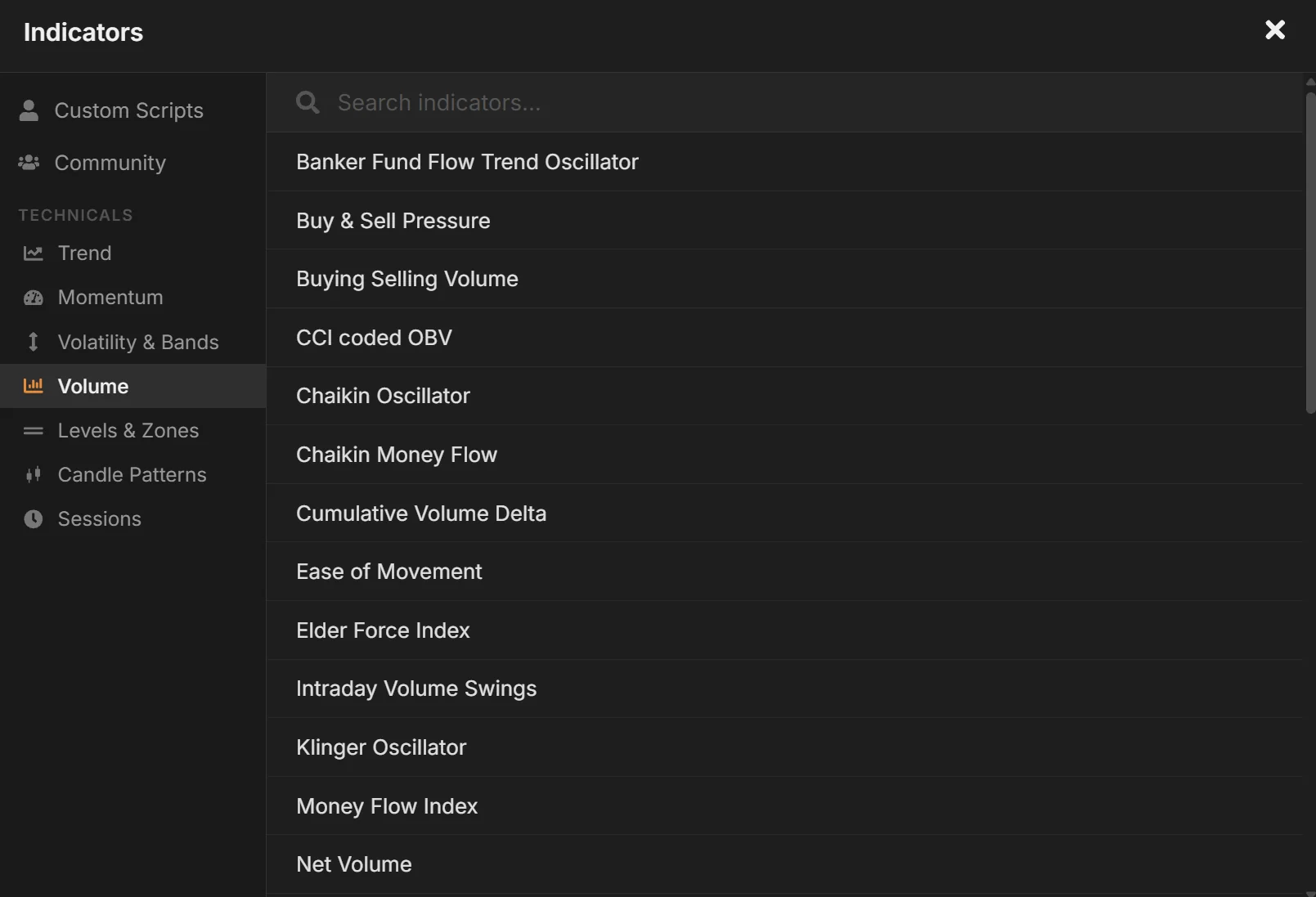
The Indicators library: Technicals by category, Community and your Custom Scripts
Custom indicators
If the indicator you want does not exist, make it. You do not need to know Python: ask for it in AI Chat, or open the editor and let the AI button write it. If you do write code, the editor gives you everything you need.
- Editor: Write the indicator, Validate it against sample data, Save it to your library and Apply it to the chart, all with keyboard shortcuts.
- Start from a built-in: New from builtin opens any built-in as an editable starting point.
- Backtest-safe: Every custom indicator is checked for look-ahead so it cannot secretly peek at future bars.
- Share: Keep it private, or publish it to the Community library.
The full scripting reference, with every calculation helper, drawing method and a step-by-step tutorial, lives in the docs.
Open the indicator scripting docs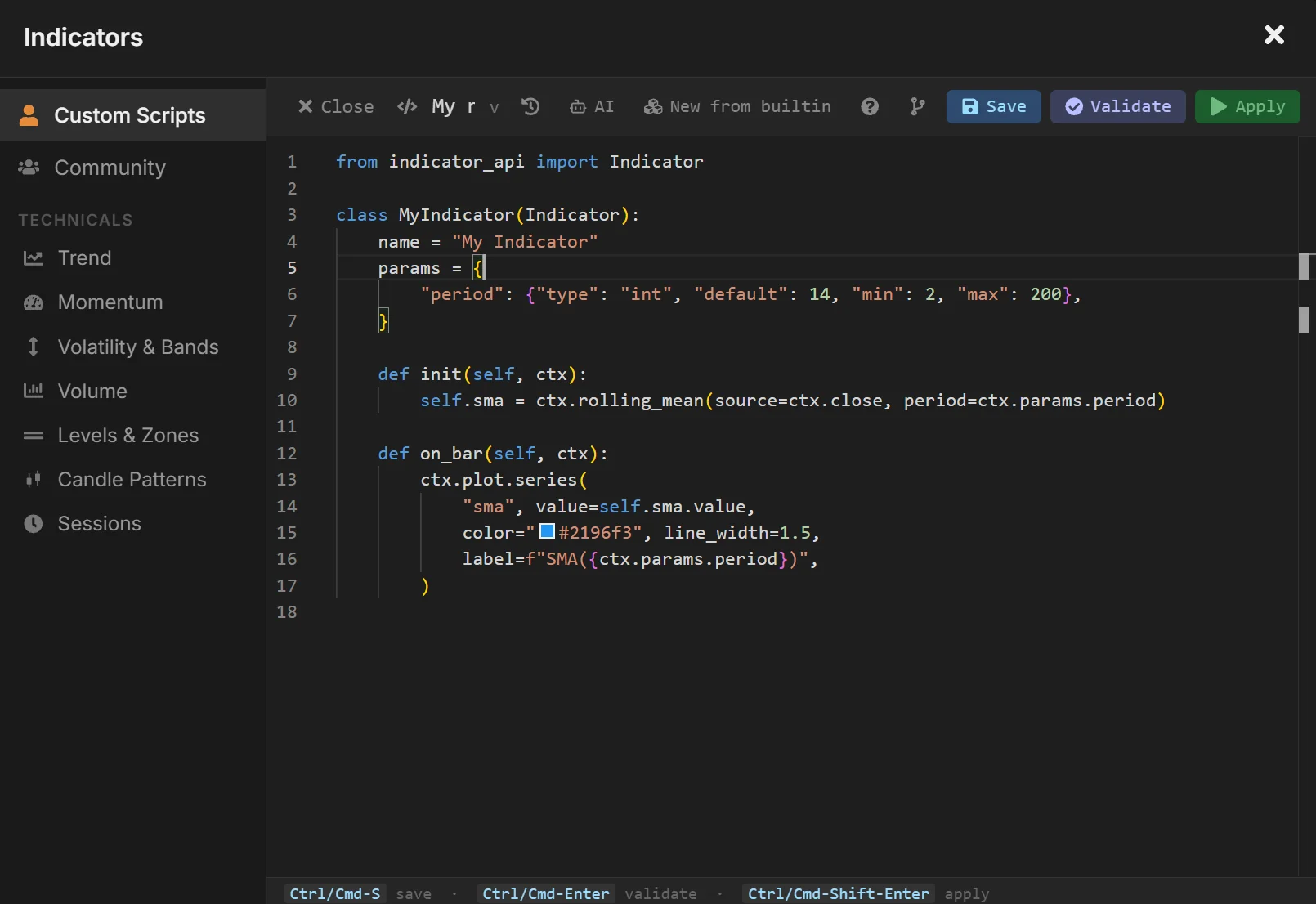
The indicator editor: code, AI help, Validate / Save / Apply
Economic Calendar (Premium)
News on your timeline
- Calendar tab: Open it from the right sidebar or press C. Events are listed relative to the chart's current time, so you see what is coming before it hits.
- Filter: Show only High, Medium or Low impact events, and only the currencies you trade.
- Alerts: Turn on event alerts and choose how many bars ahead you want the warning. The replay tells you a release is close so you can flatten or hold on purpose.
- Market tab: Seasonality and technical overview for the pair you are trading.
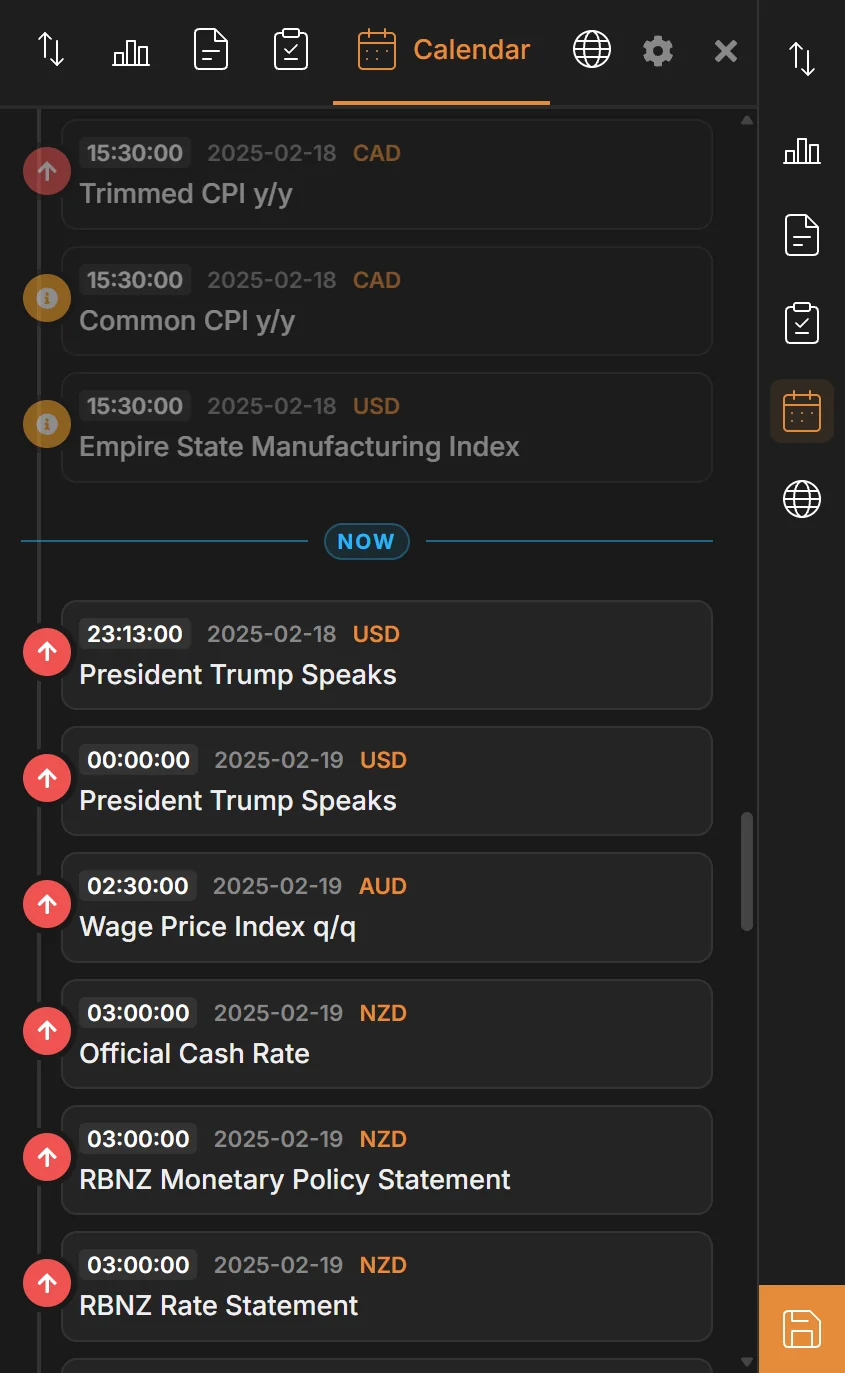
The Calendar tab: events before and after the chart's current time, each with impact and currency; the gear opens the filters and alerts
Multi-Chart Layouts (Premium)
Up to four charts in one workspace
- Layouts: The layout picker in the left toolbar offers twelve arrangements: single, two and three charts split vertically or horizontally, four-chart grids, and focus layouts where one main chart is joined by smaller ones on the side or below.
- Mix pairs and timeframes: EURUSD 15m next to EURUSD 1h, or EURUSD against GOLD and a correlated pair, each chart with its own symbol and timeframe.
- Sync: Sync Charts keeps every chart at the same moment in time as you play. Sync Drawings mirrors your drawings across charts of the same pair. Unlink a single chart to scroll it independently.
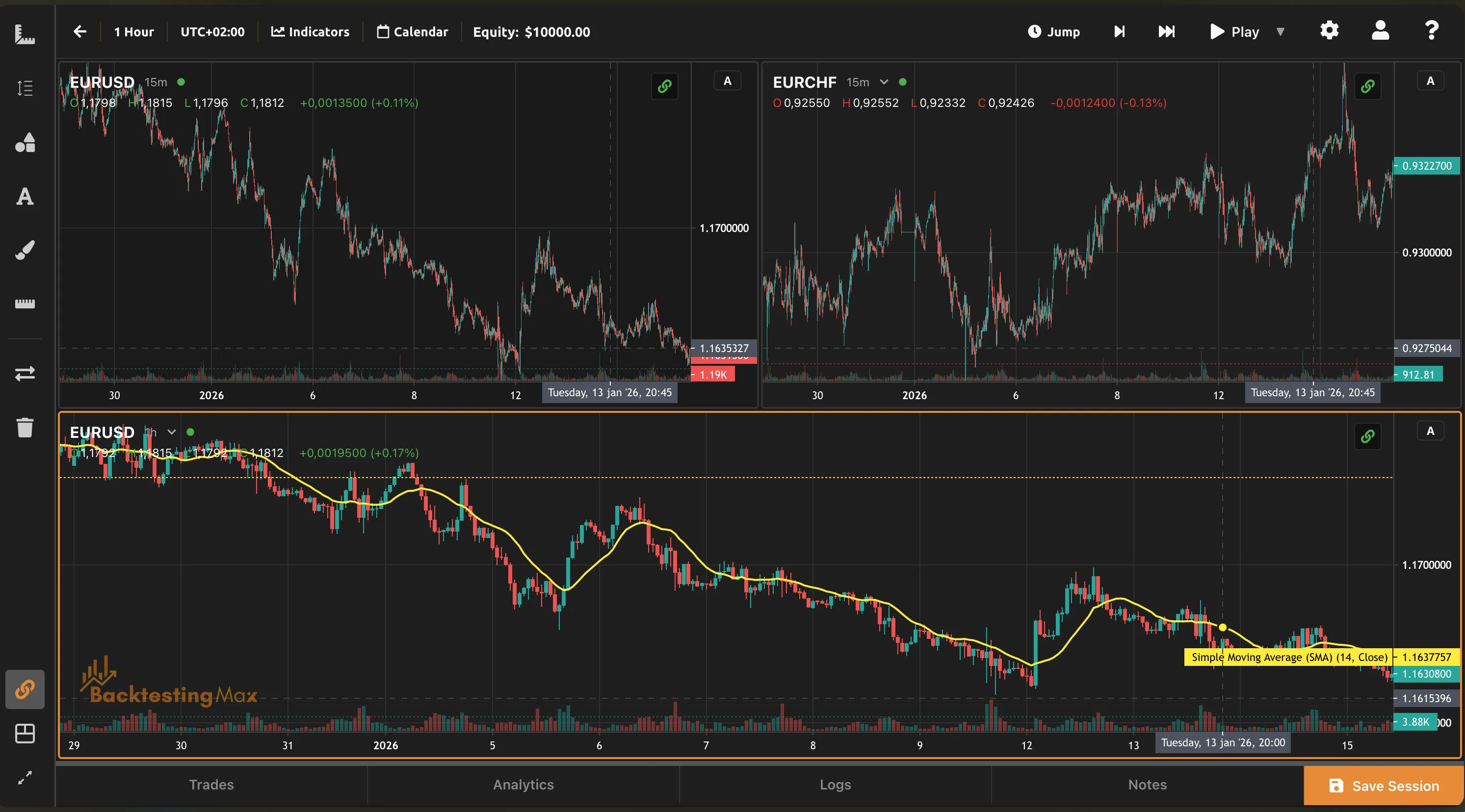
A focus layout: two smaller charts above a main chart, all in sync
Trading Costs
Make the simulation match your broker
Open Settings (S) and pick the Trading tab.
- Presets: Quick-select a broker profile to fill everything in at once.
- Commission: Per lot (per contract for futures), charged on both opening and closing.
- Opening and closing fees: Each can be a flat amount or a percentage, applied per trade or per lot.
- Spreads: Enable spreads as a fixed number of pips or price units, or floating spreads that widen with market conditions.
- See the impact: Costs are deducted trade by trade, so the equity curve and every statistic already include them.
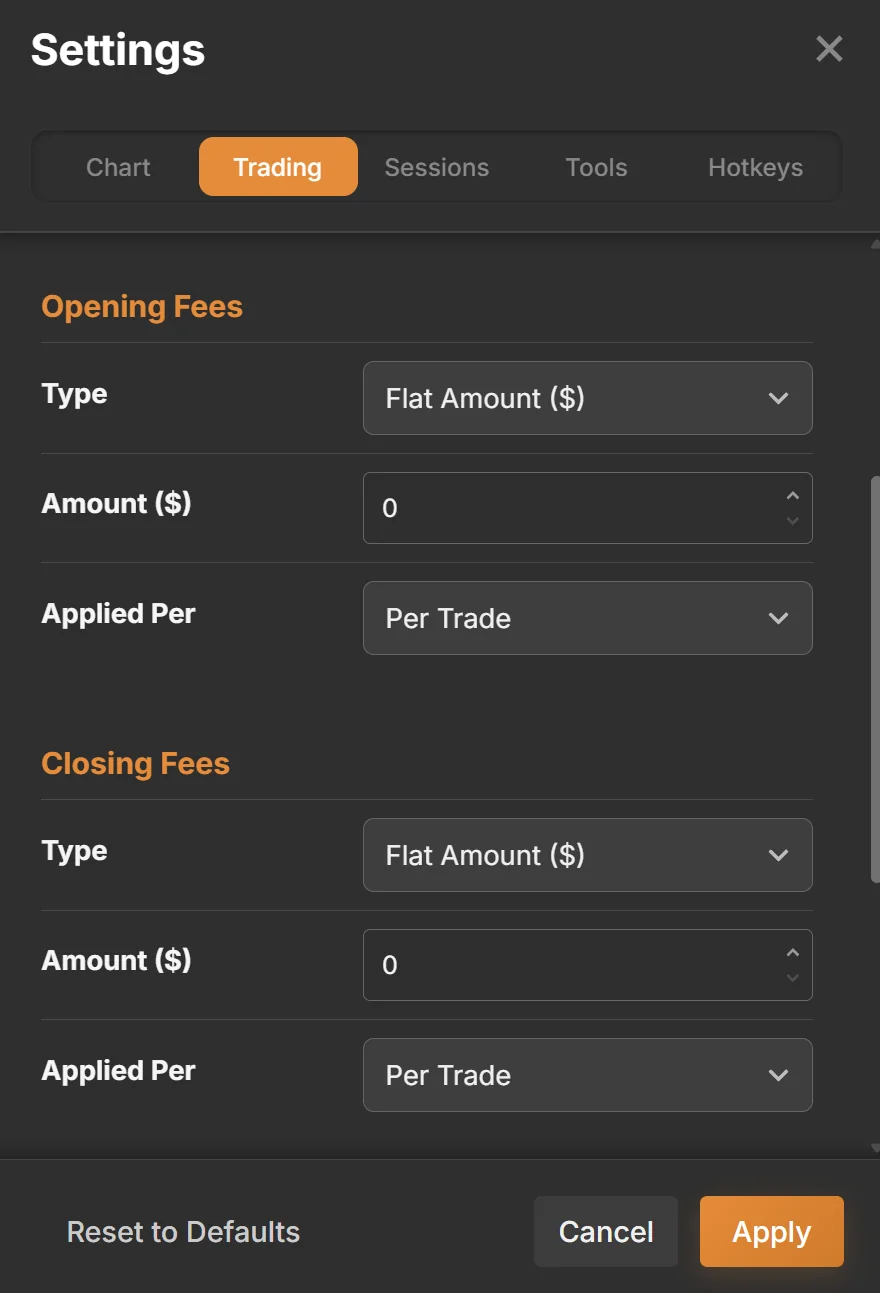
Settings → Trading: opening and closing fees, each a flat amount or a percentage, applied per trade or per lot
Keyboard Shortcuts
Defaults
Every key below can be changed in Settings → Hotkeys. Keys 1–9 are assignable to timeframes.
| Key | Action | Key | Action |
|---|---|---|---|
| Space | Play / stop playback | T | Open the trade dialog |
| → | Skip 1 bar forward | L / K | Quick long / quick short |
| Shift+→ | Skip 5 bars forward | Enter | Place the trade (dialog open) |
| ← | Stop playback | N | Add a note |
| ↑ / ↓ | Faster / slower | I | Open indicators |
| A | Auto scale | C | Open the calendar (Premium) |
| F | Fit chart to content | S | Open settings |
| Ctrl+S | Save session | H | Open help |
| Shift (hold) | Magnet mode while drawing | B | Go back |
| Del / Backspace | Delete selected drawings | Esc | Close dialogs |
| Ctrl+Z / Ctrl+Y | Undo / redo drawing | Ctrl+C / Ctrl+V | Copy / paste drawings |
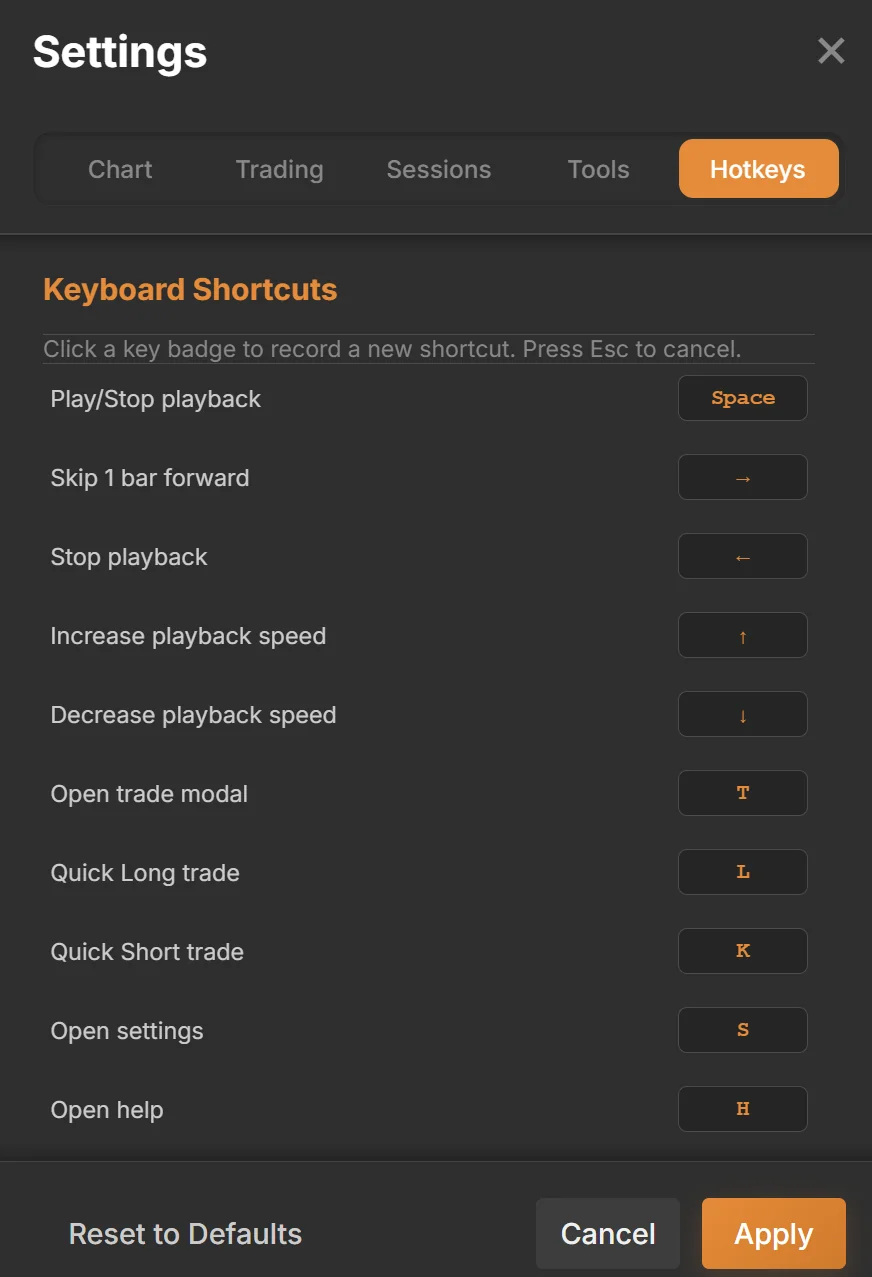
Settings → Hotkeys: rebind any action
Troubleshooting & Support
Common issues
- Chart not loading: Check your connection and refresh. If it persists, start a session with a different date range. Data may not exist for that period.
- Gaps in the data: Some pairs have gaps, especially on exotic instruments and old dates. Major pairs such as EURUSD and GBPUSD have the most complete history.
- Premium feature locked: Indicators, intrabar mode, Jump, the calendar, multi-chart and most drawing tools show a crown when your plan does not include them. Upgrade from your account icon.
- Slow playback: Move to a higher timeframe, increase the speed, or use Skip 5. Long ranges on 1m are the heaviest.
- Login issues: Clear your browser cache, then contact us.
Getting help
- In the app: Press H or the ? button for Help & Support, which links to this guide and to email support.
- Email: support@backtestingmax.com. Premium members get priority replies.
- Community: Join the Discord from your Dashboard to share sessions and strategies with other traders.
- Indicator scripting: See the documentation for the Python indicator API.